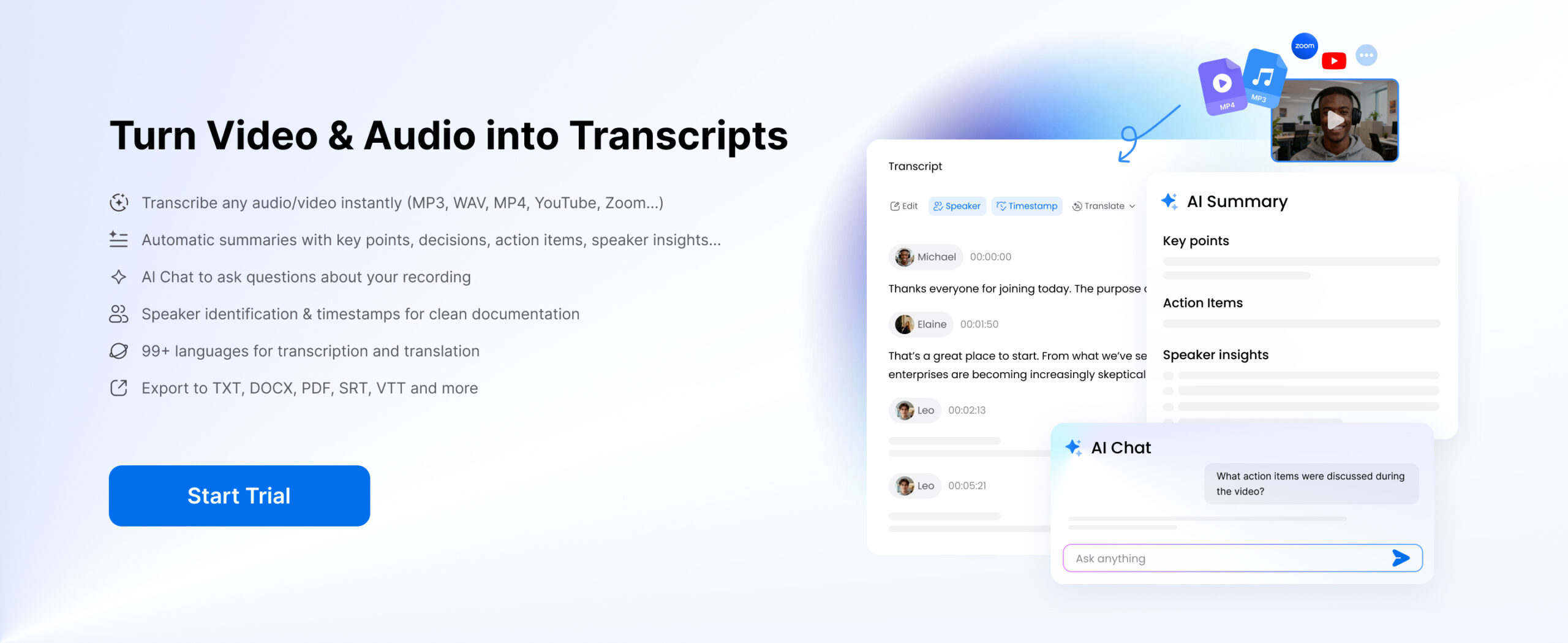
Need to know how to transcribe audio to text online free for a call, meeting, webinar, podcast, or voice memo? It’s easier than ever, thanks to a range of AI tools and built-in features. Whether you want to transcribe audio to text online in real time or upload a recording afterward, we’ll show you how to turn audio into text and compare the main options available. Let’s begin!
Part 1. How to Transcribe Audio to Text Online: 5 Key Ways
How to transcribe audio to text online depends on the tool you decide to use. Here are your key options:
AI transcription tools
Some AI transcription tools, like Clipto, transcribe audio automatically after you upload a file or paste an online link. They are a simple and convenient way to get the job done quickly and with minimal fuss.
You can usually upload audio or video files, including MP3 files, meeting recordings, interviews, lectures, podcasts, and even online links like YouTube videos. Tools like Clipto are best for users who need a fast, editable transcript with speaker details, summaries, and export options.
Pros:
- Upload and transcribe an audio file, video file, or online link.
- Often includes speaker identification, timestamps, AI summaries, and AI Chat.
- May include multiple export formats for text files, subtitles, and editing tools.
- Good for long recordings.
- Free and affordable tools available.
Cons:
- May not be suitable for highly private or compliance-sensitive files.
- Accuracy depends on audio quality and the tool you choose.
Manual transcription
Manual transcription means a person listens to the audio and types out the transcript, whether you do it yourself or hire a professional transcriber. This option is usually very accurate and may be needed when working with legal, medical, confidential, or private recordings. However, it takes much more time and can cost more than automated transcription tools.
Pros:
- Very accurate, even when background noise, accents, or unclear speech are involved.
- Can transcribe live audio or a recorded file.
Cons:
- Expensive if you hire a professional.
- Takes a lot of time if you do it yourself.
Speech-to-text software
Speech-to-text software, such as Google Docs Voice Typing, system dictation, or basic voice typing tools, is built for real-time transcription and often focuses on dictation. These tools usually work best for one-person speech because they often lack speaker identification, clean formatting, and consistent punctuation.
Pros:
- Simple and easy to use.
- Many free options available.
Cons:
- No speaker identification.
- May not save or record audio.
- Usually less accurate than dedicated transcription tools.
- Often only works in real time, with no audio upload option.
Meeting and app-based live transcription
Tools like Zoom, Google Meet, Teams, and Notion include live transcription features. But because they aren’t dedicated transcription tools, the quality and flexibility of the transcript can vary. They’re a convenient option for meetings, webinars, and team collaboration.
Pros:
- Handy when you’re already using these apps.
- Transcribes in real time.
Cons:
- Limited export and formatting options.
- Transcription quality can vary.
- Usually limited speaker identification, if available at all.
- Less flexible for editing, captions, or content repurposing.
LLM tools
LLM tools, like ChatGPT and Gemini, can transcribe audio to text. You can also ask them to create time-stamped transcripts or format the text in different ways. However, these tools can be inconsistent, and free versions may only handle short audio files.
Pros:
- Simple and accessible transcription through text prompts.
- Can be fairly accurate and provide different transcript formats.
- Often supports multiple languages.
Cons:
- Quality can be inconsistent.
- Limits on file size or recording length, especially on free plans.
Part 2. How to Transcribe Audio to Text Automatically Online with Clipto
Ready to start transcribing the easy way? AI-powered, automatic transcription using an online audio to text converter is your best bet. With Clipto, you can upload an audio file or paste an online link and transcribe audio to text online quickly and easily. Here’s how:
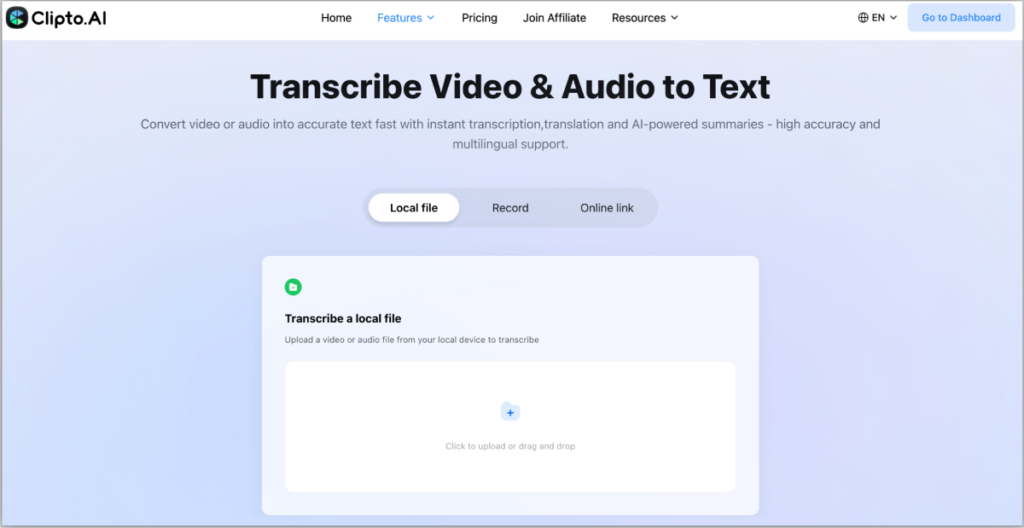
Step 1: Upload audio or paste a link
Choose the audio or video you want to transcribe, such as an MP3 file, meeting recording, interview, lecture, podcast, or voice memo. You can also paste a URL from YouTube or another supported platform when the content is already online.
Many online transcription tools support common file formats, so it only takes a moment to begin.
Step 2: Generate the audio transcript
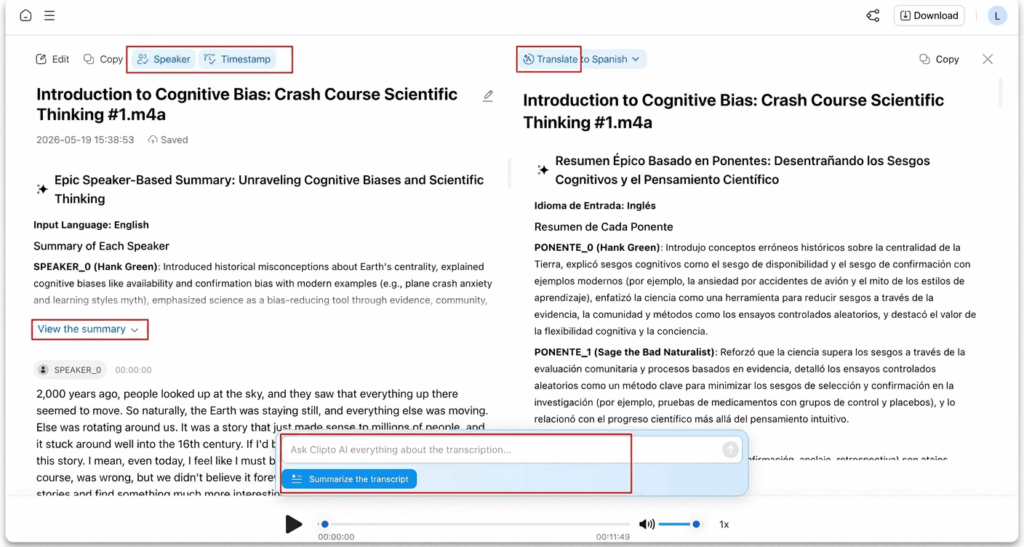
After you add the file or link, Clipto will process the audio and turn it into text within minutes. Compared with manual transcription, this step is fully automatic and does not require you to pause, replay, or type out the recording yourself.
You can get a transcript with speaker identification and timestamps. If you need the main points quickly, Clipto’s AI Summary and AI Chat features can also help you understand the recording without listening to it again.
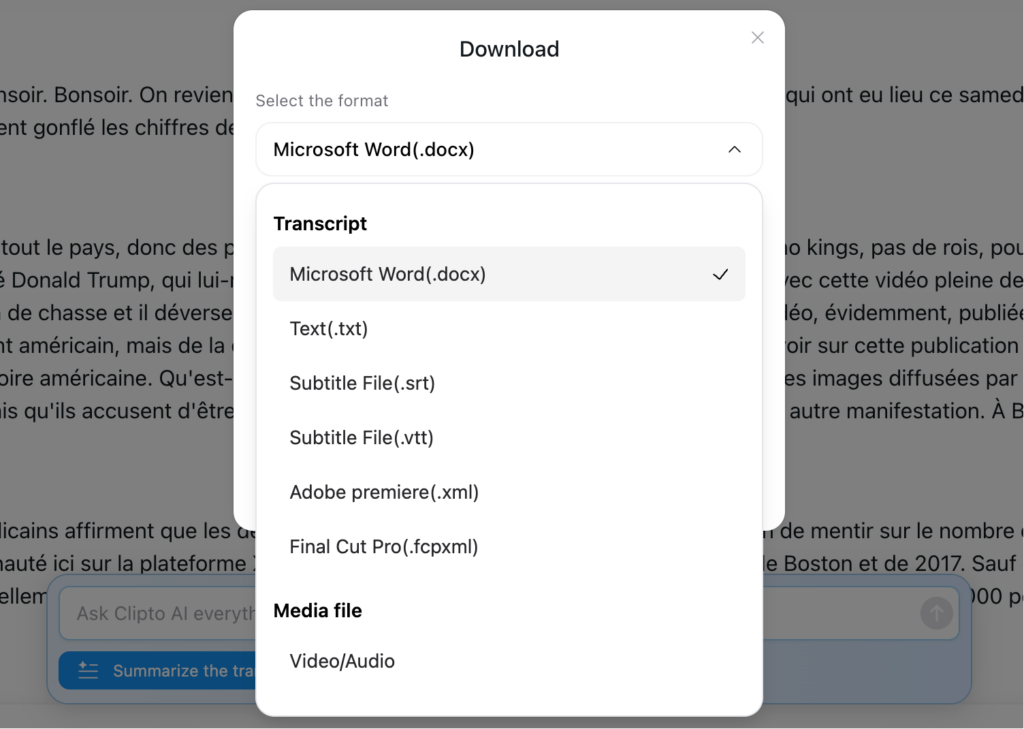
Step 3: Edit and export the audio transcript
Once the transcript is ready, you can review the text and export it in formats such as TXT, DOC, SRT, and VTT.
This gives you a usable transcript from your audio file, ready for editing, sharing, captions, or publishing.
Tip: Clear audio and less background noise can significantly improve transcription accuracy.
Part 3. How to Transcribe Audio to Text Manually
Manual transcription can be very accurate, even when there is background noise, strong accents, or speakers talking over each other. It may also be required for legal, medical, confidential, or private recordings. But it takes a lot of time. And if you hire someone else to do it, it can also be expensive. Here’s what the process looks like:
Step 1: Listen to the full recording first
Play the recording all the way through to understand the speakers, topic, and context of the conversation.
Step 2: Replay and type what you hear
Start the recording again and begin typing the transcript. Pause, rewind, and replay as often as needed to keep up with what is being said.
Step 3: Add timestamps if needed
You can add timestamps at regular points or before important sections. This is useful for interviews, research, legal review, podcast editing, or any transcript that needs easy reference points.
Step 4: Review the transcript
Once you have typed the full transcript, listen again while reading along. Check that the text matches the spoken audio and fix any missed words, names, or unclear sections.
Step 5: Clean up the final version
Edit the transcript for grammar, punctuation, and readability. Depending on your needs, you may keep filler words and pauses for a verbatim transcript, or remove them for a cleaner version that works better for notes, summaries, articles, or sharing.
If you decide to hire a professional transcriber, the cost will usually depend on the audio length, transcript type, turnaround time, and whether the file needs legal or official certification.
Part 4. How to Choose the Right Audio Transcription Tool
Not sure which transcription tool to use? Here are 6 simple tips to help you choose the right one.
Start with your use case
Before comparing features, think about who you are and what kind of audio you need to transcribe. Different users need different tools.
- Podcasters, YouTubers, and content creators may need a tool that can handle long audio, multiple speakers, captions, and content repurposing.
- Teams and businesses may need meeting transcripts, summaries, speaker labels, and an easy way to review key points.
- Students may need lecture transcripts that are easy to search, highlight, and turn into notes.
- Journalists and researchers may need accurate transcripts with timestamps, speaker labels, and searchable quotes.
- Editors may need subtitle files or formats that fit their video editing workflow.
Check audio upload support
If you want to transcribe audio file to text, make sure the tool supports the type of content you have. Some tools only work for real-time dictation, while others let you upload audio files, video files, or paste online links.
This matters if you work with MP3 files, meeting recordings, podcast audio, interviews, lectures, voice memos, or videos hosted online.
Decide whether you need speaker identification
Many transcription tools do not offer speaker identification. If you are working with interviews, meetings, podcasts, or group discussions, speaker labels can save a lot of review time. They also make the transcript easier to follow, especially when you need to pull quotes, assign action items, or understand who said what.
Consider your export formats
Think about how you’ll use the transcript after it’s ready. Will you need plain text, captions, subtitles, editing files, meeting notes, or a document you can share?
TXT is useful for simple text. SRT and VTT are better for captions and subtitles. DOC or DOCX files are easier to edit. Some tools also support formats for editing workflows, such as Premiere Pro or Final Cut. The closer the export format is to your final use, the less cleanup you’ll need later.
Confirm language support
Not every transcription tool handles languages, accents, or bilingual recordings equally well. If you work with international speakers, translated transcripts, or content in more than one language, check the language support before choosing a tool. Clipto supports 99+ languages, which makes it useful for multilingual audio and video transcription.
Think about editing and summaries
No AI transcript is perfect. Built-in editing features can make cleanup much easier after the transcript is generated. Look for features like timestamps, speaker labels, searchable transcripts, translation, AI summaries, and AI chat. These tools can help you review the transcript faster, find important moments, summarize the recording, and turn the text into something ready for editing, sharing, or publishing.
Conclusion
There are several ways to transcribe audio to text online, but AI transcription is the easiest option if you want a fast result with less manual work. Clipto can help turn audio into searchable, editable text. Upload your file, generate the transcript, review the result, and export it in the format you need. Try Clipto to transcribe your audio to text online and make your recordings easier to edit, search, and share.
FAQs
How can I transcribe audio to text online free?
You can transcribe audio to text free using AI transcription tools, speech-to-text software, built-in app features, or manual transcription. Some tools work in real time, while others let you upload an audio file and generate a transcript afterward. If you need to transcribe an audio file to text with speaker labels, timestamps, summaries, and export options, an AI transcription tool like Clipto is usually the more direct choice.
How do I transcribe an audio file to text?
To transcribe an audio file to text, upload your file to an online transcription tool like Clipto, choose your language or transcription settings, and let the AI process the recording. After the transcript is ready, review the text for names, unclear words, or technical terms. Then export it as TXT, DOC, SRT, VTT, or another format that fits your workflow.
What is the best MP3 audio to text converter online free?
The best MP3 audio to text converter online free depends on what you need from the transcript. If you only need a free audio to transcript tool for short dictation or basic speech-to-text, built-in tools may be enough. If you need speaker identification, timestamps, summaries, translation, and downloadable transcript formats, Clipto is a better option for turning MP3 audio into editable text.
Can Google transcribe audio to text?
Google tools can help with speech-to-text transcription, especially for real-time voice typing. Google Docs Voice Typing, for example, works well for simple dictation when one person is speaking clearly. However, Google’s basic transcription options are usually less useful for uploaded audio files, long recordings, speaker labels, or polished transcript exports. For those needs, a dedicated transcription tool is usually easier to use.
How do I transcribe audio to text in Word?
Microsoft Word on the web includes a Transcribe feature that can turn recorded audio into text. It supports common file formats such as WAV, MP4, M4A, and MP3. This can be useful if you already work in Microsoft Word. But if you need more transcript features, such as summaries, subtitles, translation, or multiple export formats, you may prefer a dedicated audio to text converter.
Can I transcribe audio to text on a Mac?
Yes. You can transcribe audio to text on a Mac using an online tool in your browser or a desktop transcription app. Clipto’s Mac desktop app is useful if you work with private recordings and prefer to handle files on your own device. You can add your file, generate the transcript, edit the text, use timestamps or speaker labels, and export the result when you’re done.
How accurate are AI audio transcription tools?
AI audio transcription accuracy varies depending on the audio quality, background noise, speaker accents, overlapping speech, and the vocabulary used. To improve accuracy, use clear audio whenever possible. Record in a quiet space, reduce background noise, speak clearly, and use a good microphone if you can. Even with AI tools, it’s still worth reviewing the final transcript before sharing or publishing it.