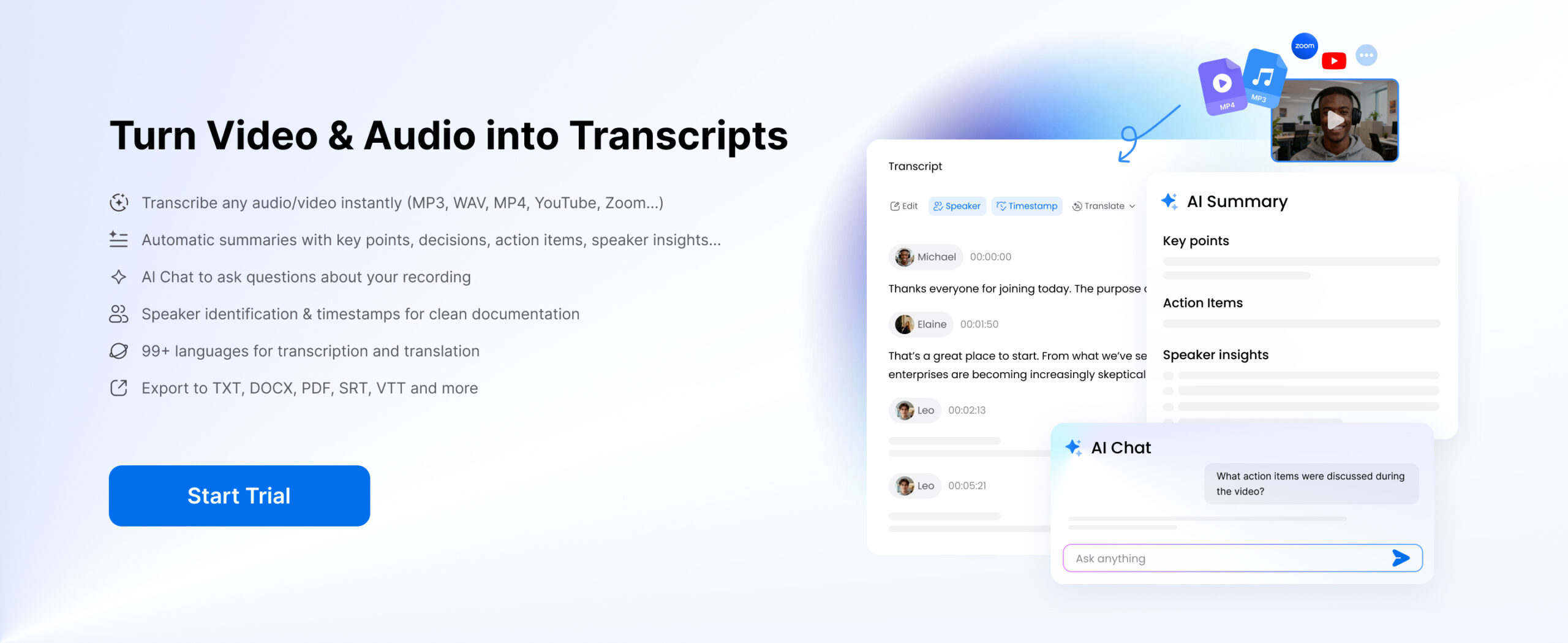
Learning how to transcribe audio to text helps you turn interviews, podcasts, lectures, meetings, voice notes, and videos into searchable, editable content. Instead of replaying the same recording again and again, you can scan the transcript, pull quotes, write summaries, create captions, or turn podcast episodes into blog content. It also helps with accessibility, SEO, and content repurposing, especially if you work with recorded conversations or video content often.
Some people also want to transcribe audio to text free, while others need a faster tool with better accuracy, speaker labels, export options, or video support. This guide covers 8 practical tools for different needs, from online AI transcription and Mac apps to creator tools, meeting assistants, human-reviewed services, and built-in Microsoft options.
The best transcription tool depends on what you plan to do after the transcript appears. A student may only need clean lecture notes. A marketer may want quotes from a webinar. A podcaster may need subtitles, summaries, and export files for editing. So instead of treating every tool like the same product with a different logo, this list looks at what each one actually helps you finish.
Part 1. Clipto Online
Best for: Fast online audio and video transcription
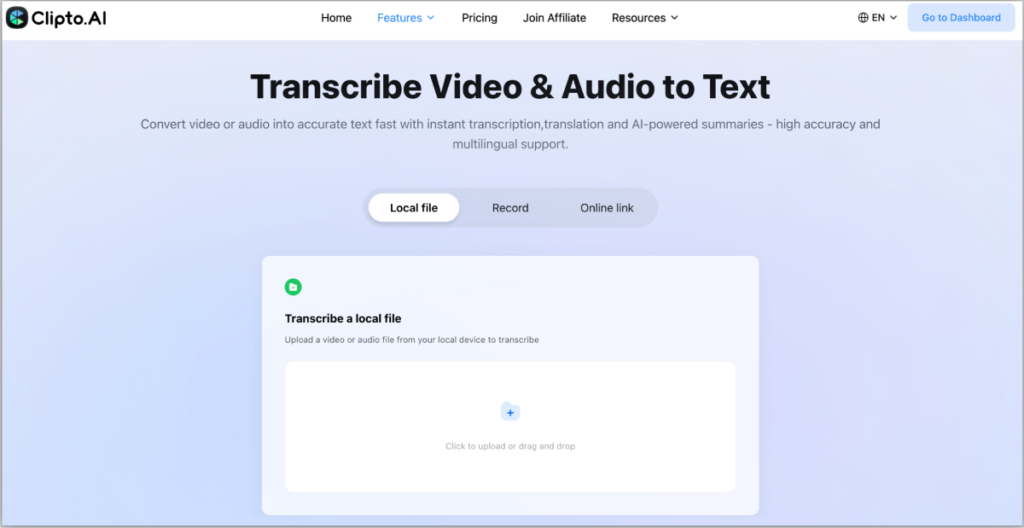
Some tools seem to be designed for people who like to study setting menus. Clipto is just the other way around. You upload local audio or video files, or paste an online media link, and the transcription will appear in a workspace where you can really sort it out.
That makes Clipto Online useful for meetings, interviews, classes, podcasts, webinars, voice notes, and video files. You can transcribe audio to text free online, or turn video into text for subtitles, notes, quotes, and editing prep.
What you can do in Clipto:
- Upload a local file or paste an online media URL
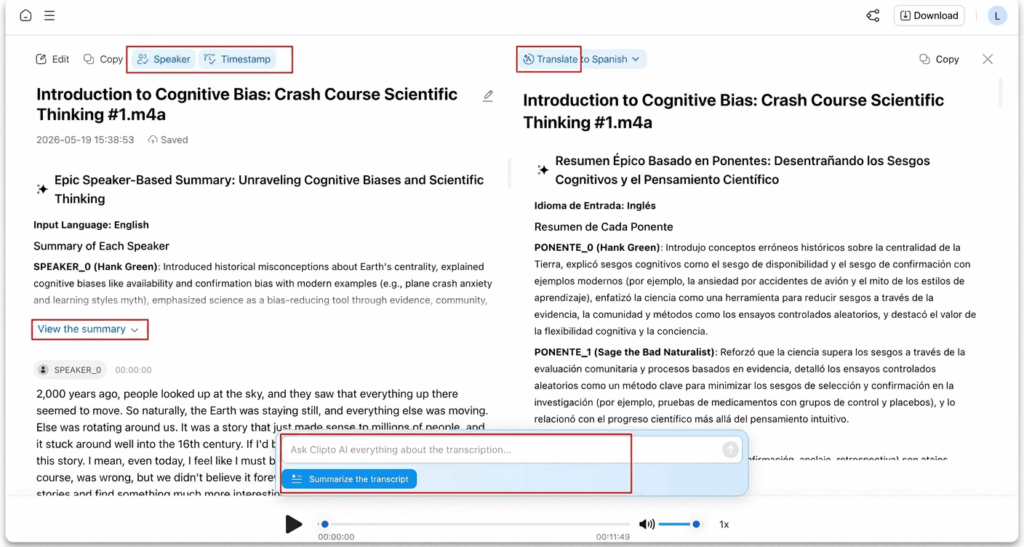
- Fix names, numbers, product terms, wording, and punctuation
- Add speaker labels for conversations with multiple people
- Use timestamps to jump back to exact moments
- Translate the transcript or subtitles into another language
- Click Click AI Summary to summarize a video with AI
- Use AI Chat to find quotes, key moments, or answers inside the recording
- Export as DOCX, TXT, SRT, VTT, XML, or FCPXML
The real value is that Clipto does not leave you with a rough transcript and call it done. It gives you a cleaner path from raw recording to notes, captions, quotes, or editing files without making you jump between tools. This makes Clipto Online a practical choice if you want a browser-based transcription tool that can handle everyday audio and video files without adding extra editing steps.
Part 2. Clipto Mac App – Local AI Audio Transcription for Privacy
Best for: Users who need to transcribe sensitive audio or video files locally without an internet connection.
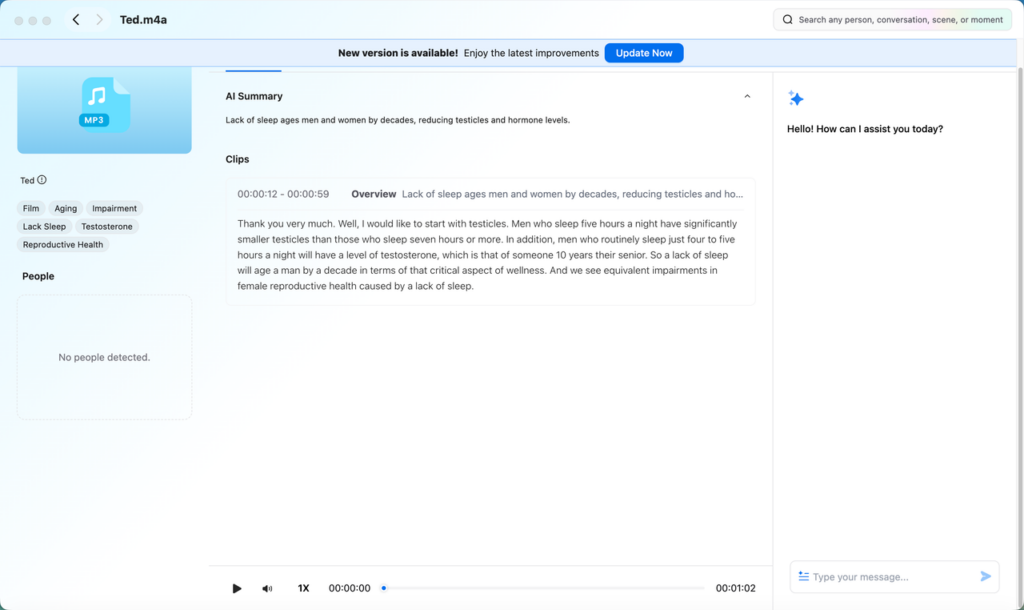
Clipto Mac App is the private, desktop-first side of Clipto. The online tool handles quick uploads in the browser. The Mac app goes after a different problem: what happens when you have hours of interviews, client calls, lectures, meeting recordings, or video clips sitting on your computer, and you need to search through them without sending files around.
It runs locally on your Mac, so your media files are always on your device. You can transcribe audio or video, search for spoken words, jump to a specific point in time, identify speakers, and convert long recordings into abstracts or notes. This local way is very important for journalists, researchers, students, creators, or teams that need to deal with private materials.
What the Mac app brings:
- Local processing with no cloud upload
- Audio and video transcription on Mac
- Search across spoken words, people, scenes, and actions
- Speaker identification for interviews and meetings
- Creates summaries, notes, and follow-up points from long recordings
- Works better for private files and large media libraries
Choose Clipto Mac App for private files, searchable transcripts, and regular transcription work.
Part 3. Descript
Best for: Podcasters, YouTubers, and video creators
Descript starts with transcription, but it does not stay there. Drop in a podcast, interview, course video, screen recording, or YouTube clip, and Descript turns the spoken words into an editable script. From there, you edit the media the same way you edit a document. Cut a sentence, move a section, clean up filler words, and your audio or video changes with it.
This makes Descript a good choice for creators, especially those who are not satisfied with only getting the text manuscript. The podcast host can cut one episode more compactly. YouTuber can split a long recording into several fragments. Course producers can add subtitles and smooth the lecture content before publishing. It is also suitable for those video projects that need to transcribe video to text first and then edit it immediately.
Where Descript earns its spot:
- Edits audio and video through the transcript
- Removes filler words like “um” and “uh”
- Adds captions for videos and social clips
- Helps create short clips from longer recordings
- Improves spoken audio with Studio Sound
- Exports transcripts, captions, and edited media
Descript is not the fastest choice for a one-page transcript. It shines when the transcript becomes the editing room.
Part 4. Rev
Best for: AI transcription with human review options
Rev is a better fit for users who need a more reliable transcript than a basic transcription app can usually provide. You can upload an audio or video file and get an AI transcript quickly. If the recording needs more careful handling, you can also choose human transcription. That extra review is useful for journalist interviews, research recordings, legal files, business meetings, and any content where names, numbers, quotes, or small details need to be accurate.
Rev also handles more than a plain transcript. You can add timestamps, work in its transcript editor, order captions, and download the final file for notes, reports, evidence review, or content production.
What Rev does well:
- Offers both AI transcription and human transcription
- Handles audio and video files
- Adds timestamps when you need exact references
- Gives you an editor for reviewing and polishing the transcript
- Supports caption creation for video content
- Good for work that needs high accuracy
Rev is usually more expensive than basic or free transcription tools, especially if you choose human transcription. Still, for important recordings, the extra review can reduce the time you spend fixing errors later.
Part 5. Happy Scribe
Best for: Multilingual transcription, subtitles, and translation
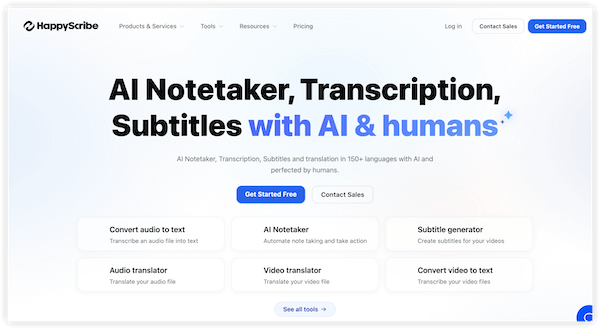
Happy Scribe belongs on this list because it handles the language side of transcription better than most tools. It does not stop at turning speech into text. You can upload audio or video, create a transcript, turn that transcript into subtitles, translate it, and prepare the file for a wider audience.
That gives Happy Scribe a clear role: international content. Think YouTube videos, online courses, webinars, interviews, documentaries, podcasts, and brand videos that need captions or subtitles in more than one language. It also gives you AI transcription for speed and human-made services when a project needs more polish.
What Happy Scribe brings:
- Transcription for audio and video files
- Subtitle and caption tools for video projects
- Translation for multilingual content
- AI and human-made transcription options
- Export formats for subtitles and transcripts
- A useful workflow for global teams, educators, creators, and media teams
Pick Happy Scribe when language is part of the job: one recording, several versions, and a cleaner path from transcript to subtitles or translation.
Part 6. Otter.ai
Best for: Meetings, lectures, and real-time notes
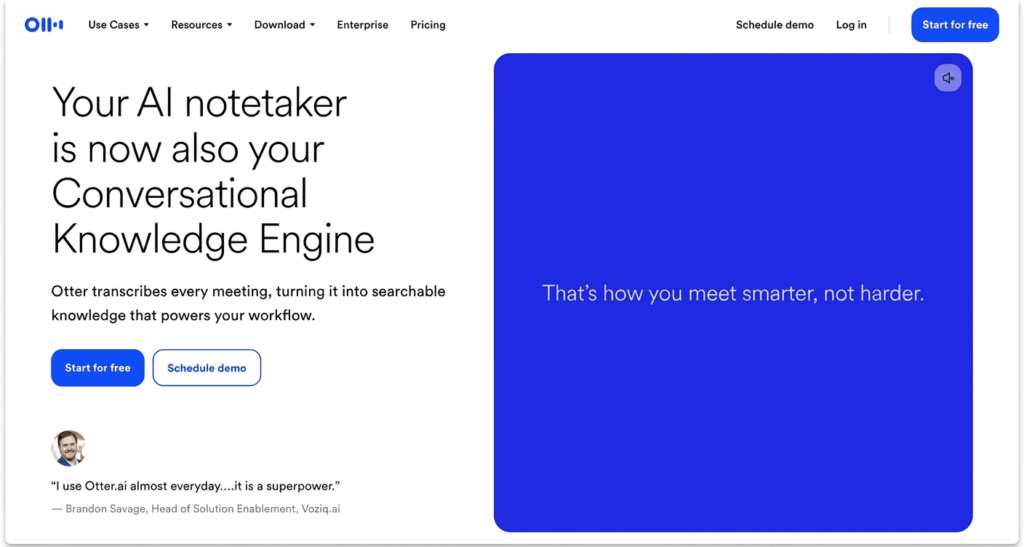
Otter.ai knows exactly where it belongs: meetings, classes, interviews, and team calls. Open a Zoom, Google Meet, or Microsoft Teams session, and Otter can join as a note taker, capture the conversation in real time, and turn it into a transcript your team can search later.
This makes Otter useful when people talk fast, jump between topics, or leave the meeting with five different “next steps.” Instead of chasing notes during the call, you can stay in the conversation and review the transcript, summary, highlights, and action items afterward.
Where Otter helps most:
- Records and transcribes live meetings
- Works with Zoom, Google Meet, and Microsoft Teams
- Creates searchable meeting transcripts
- Adds summaries, key takeaways, and action items
- Identifies speakers in conversations
- Meeting notes sharing for teams
- Supports imported audio and video files
Otter is great for calls, classes, and team updates. If you’re dealing with podcast edits, video polish, or multilingual subtitles, Descript or Happy Scribe works better.
Part 7. Microsoft Word Transcribe
Best for: Microsoft 365 users who need basic audio transcription
Microsoft Word Transcribe fits those who are already writing, revising manuscripts and organizing notes in Word. You can create a new document, click on the “Ditation” menu, select “Transcribe”, and then upload the recording. Word supports MP3, WAV, M4A and MP4 common formats, so it can be used for interview recordings, meeting minutes, classroom audio and voice memos.
Where Word Transcribe helps:
- Upload common audio files inside Word
- Record live conversations when needed
- Review the transcript beside your document
- Add useful sections directly into your notes
- Keep the audio file in OneDrive
- Use a built-in option if you already pay for Microsoft 365
For people searching for ways to transcribe audio free, Word can feel like a no-extra-tool option when Microsoft 365 already sits in their daily workflow.
Part 8. Microsoft Clipchamp
Best for: Video captions and simple video-to-text needs
If you often deal with videos, such as social media clips, course videos, screen recordings, tutorials or internal training content, Clipchamp is a great fit. Drag the video to the timeline, turn on the automatic subtitles, and then check the text to manually change the names, terms or some sentences missed by AI.
It can also help if you want to transcribe video to text free for a basic subtitle workflow. You can create captions, adjust how they appear on the video, download an SRT file, and export the finished clip from the same editor.
Where Clipchamp helps most:
- Generates auto captions from video or audio tracks
- Lets you edit caption text before exporting
- Downloads captions as an SRT file
- Works well for social videos, lessons, tutorials, and screen recordings
- Keeps captions and basic video editing in one tool
If your file is mainly MP3, WAV, or M4A, Clipto Online or Microsoft Word Transcribe is a simpler choice. Clipchamp works better when the transcript is part of a video project, especially when you need captions or basic editing.
Part 9. Comparison Table: How to Choose the Right Tool
After the tool list, the choice usually comes down to what kind of file you have and what you want to do next. A plain interview transcript needs a different setup from a podcast edit, a private research recording, or a video subtitle file.
| Tool | Best For | Audio to Text | Video to Text | Best Choice When |
| Clipto Online | Online transcription | Yes | Yes | You want the easiest browser-based workflow |
| Clipto Mac App | Offline Audio-to-Text Transcription | Yes | Yes | You transcribe sensitive audio or video files locally |
| Descript | Creators | Yes | Yes | You edit podcasts or videos |
| Rev | Accuracy-critical work | Yes | Yes | You need AI plus human review |
| Happy Scribe | Multilingual content | Yes | Yes | You need subtitles or translation |
| Otter.ai | Meetings | Yes | Yes | You need meeting notes and searchable transcripts |
| Microsoft Word Transcribe | Microsoft 365 users | Yes | Limited | You already work inside Word |
| Microsoft Clipchamp | Video captions | Limited | Yes | You need captions or SRT for videos |
If you searched for transcribe audio to text free online because you want a quick browser tool, start with Clipto Online. If you handle private files on a Mac and transcribe often, use Clipto Mac App. Creators who edit podcasts, YouTube videos, or course clips will get more from Descript. Rev fits recordings where every name, number, and quote needs careful review.
For multilingual subtitles, translations, or international video content, Happy Scribe has the stronger workflow. Otter.ai fits calls, classes, and team updates. Microsoft Word Transcribe works well when you already write inside Word. Clipchamp belongs in video projects where captions and SRT files matter more than a full audio transcription workspace.
Conclusion
No one wants to listen to a 50-minute recording from the beginning to find a useful sentence, a to-do, or a line of subtitles. This is where a good transcription tool can be used. Basic tools such as Microsoft Word Transcribe or Clipchamp can handle quick notes and simple subtitles. But if you often deal with interviews, meetings, classes, podcasts or video files, you still need a more useful tool: the text is cleaner, easy to edit, and has more export options, leaving no mess.
Clipto Online is a good first stop when you want to transcribe audio to text in the browser. Clipto Mac App fits better when you work on a Mac and want a more private desktop workflow. Try it today!
FAQs
Can I transcribe audio to text free online?
Yes. You can transcribe audio to text free with tools that offer a free trial, limited free plan, or built-in transcription feature. If you have an MP3, WAV, or M4A file, use a tool that accepts audio uploads directly instead of turning the file into a video first.
What is the easiest way to transcribe audio to text?
The easiest way to transcribe audio to text is to upload your file to an AI transcription tool, generate the transcript, then check names, numbers, speaker labels, and punctuation. Clipto Online works well for quick browser use, while Clipto Mac App suits people who handle recordings often on Mac.
Can I use the same tools to transcribe video to text?
Yes, many tools can transcribe video to text as well as audio. Clipto Online, Clipto Mac App, Descript, Rev, Happy Scribe, and Otter.ai all support audio and video in different ways. Clipchamp works better when you mainly need captions or an SRT file.
What is the best option to transcribe video to text free?
For basic captions, Clipchamp gives you a simple way to transcribe video to text free. Add your video, generate auto captions, edit the text, and export an SRT file. For a fuller transcript workflow, Clipto Online gives you more room to edit, summarize, and export.
Is Google Docs good for transcribing uploaded audio files?
Not really. Google Docs Voice Typing works better when you speak live into your microphone. For saved files like MP3, M4A, WAV, or MP4, use a tool built for uploads, such as Clipto Online, Microsoft Word Transcribe, or Otter.ai.