Here’s something nobody tells you about building a growing content library: the clip you need is often already on your Mac, you just can’t find it. The reason? Footage has been scattered across project folders, external drives, and files with names that stopped making sense weeks ago.
A creator may remember exactly what they filmed: a guest mentioning a product launch, someone standing against a blue background, or a short reaction buried inside a long interview. Yet finding that one moment can mean opening file after file, scrubbing through hours of footage, and searching folders called “Untitled,” “Final,” or “New Folder 12.”
The frustrating truth is that many creators are far better at making content than managing it. They may spend days refining a video, then save the source files in a system that only shows where each file is stored, not who appears in it, what was said, or what happens in the scene.
When a media library starts to grow, the real challenge is no longer where to store everything, but how to find and reuse what is already there. Digital asset management for creators turns growing video and audio collections into a searchable library, making footage easier to organize, retrieve, and use again instead of letting it disappear into another storage archive.
Ready to spend less time hunting and more time creating? Let’s turn scattered media into a library you can actually search.
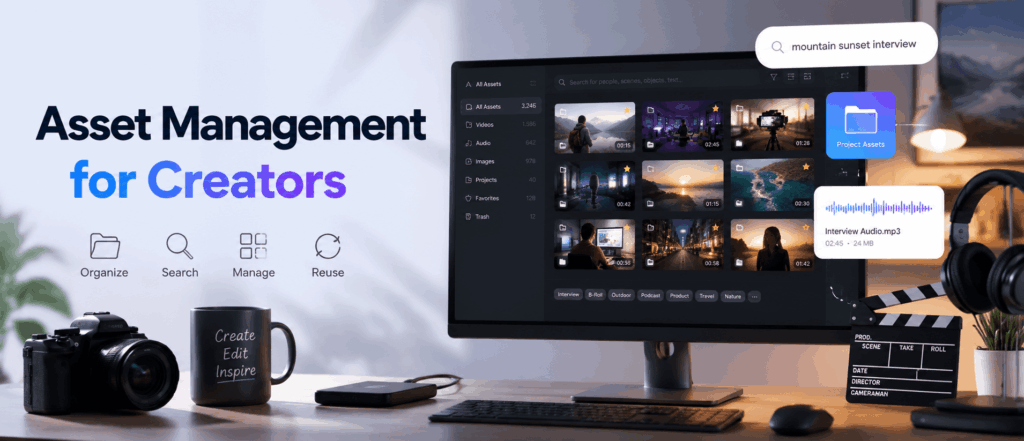
Part 1. Why Asset Management Matters More Than Ever for Creators
The first problem is obvious: every project creates far more media than the final video will ever use. Raw footage, alternate takes, interviews, podcast recordings, B-roll, and social clips can fill project folders and external drives faster than most creators expect.
The bigger problem? Storage only tells you where those files live. It doesn’t help you remember which interview contains the right quote, which clip shows a certain person, or where that one usable scene was recorded. When footage can’t be found, understood, or reused quickly, valuable content starts acting more like digital clutter than a creative resource.
Digital asset management changes how creators handle a growing media library. It organizes, describes, searches, and retrieves files throughout the creative workflow, so each asset is easier to find and reuse.
And this isn’t only for enterprise marketing teams managing thousands of brand files. For creators, asset management belongs alongside the other digital creator tools that keep production moving, reducing the time spent opening folders and scrubbing through recordings so existing footage can become the next video, podcast, or social clip.
Part 2. Essential Components of a Creator Asset Management System
Let’s clear up one common misconception: better asset management doesn’t always mean moving every file into a new cloud platform. For most creators, the right system brings existing storage, folder organization, and searchable file information together.
Local and Connected Storage
Video and audio may already be spread across Mac folders, external drives, NAS systems, Dropbox, and Google Drive. A creator-focused system can make these locations searchable from one place while the original files stay where they are. This avoids unnecessary uploads, file duplication, and a complete rebuild of the current library.
File and Folder Organization
Folders still provide the basic structure of a media library. Files can be grouped by:
- Year
- Client
- Project
- Shoot
- Content type
Within each project, keep raw footage, audio, graphics, project files, exports, and archived material separate. A repeatable structure makes the library easier to manage as new projects are added.
Searchable Metadata
Here is what file names can’t tell you: what actually happens inside the footage. Metadata fills that gap by describing each asset through information such as:
- File type, resolution, duration, and recording date
- People appearing in the footage
- Spoken dialogue
- Objects, actions, and environments
- Scene descriptions
- Project tags and custom labels
This information allows creators to search by content instead of opening every file manually.
Finding the Right Balance
Experienced creators don’t choose between folders and metadata—they use both. Folders control where assets are stored. AI-generated metadata and content search reveal what those assets contain. Together, they create an asset management workflow that remains organized while making individual clips easier to find and reuse.
Part 3. Building Your Digital Asset Management Workflow
Start with the basics: file names you can understand and folders you can navigate. AI can handle the deeper details once the media library starts growing.
File Names That Stay Useful
Enough with names like IMG_1047_final_FINAL_new.mp4. A useful file name should tell you what the file belongs to before you open it.
A simple format might look like this:
260612_ProductLaunch_Interview_Sarah260612_ProductLaunch_Broll_Office260612_ProductLaunch_SocialClip_CameraA
Include details such as the date, project, subject, content type, or camera. AI may help you search inside a file, but clear names still keep projects easier to scan, sort, and archive.
A Folder Structure That Can Grow
Stop adding new folders wherever there happens to be space. Use one structure that can be repeated across projects:
2026_Projects/ ├── Client_or_Channel/ │ ├── Project_Name/ │ │ ├── 01_Raw_Video/ │ │ ├── 02_Audio/ │ │ ├── 03_Project_Files/ │ │ ├── 04_Exports/ │ │ └── 05_Archive/
Keep raw footage, audio, project files, exports, and archived material separate. The simpler the structure is, the easier it will be to use again for the next client, channel, or shoot.
Automatic Tags and Content Analysis
An AI asset manager goes beyond what traditional folders can do. It analyzes media files and automatically generates useful metadata, such as:
- People appearing in the footage
- Descriptions of different scenes
- Objects and actions in the frame
- File type, duration, and resolution
- Searchable text from spoken dialogue
Instead of watching every file and adding tags by hand, creators can let content analysis build a more detailed picture of what each asset contains.
Search and Clip Discovery
A digital asset manager should do more than search file names. It should help you search what happens inside the media.
You might search for:
- Every clip featuring a particular person
- A sentence spoken during an interview
- Footage with a blue background
- A person wearing white
- A handshake between two people
- A city scene recorded at night
The right result should take you to the relevant clip or moment—not leave you scrubbing through an hour-long recording to find ten useful seconds.
Local Processing and Privacy
Client footage, unpublished videos, private interviews, and confidential recordings should stay under the creator’s control.
With local processing, files don’t need to be uploaded simply so an asset manager can analyze or search them. This keeps sensitive media on the device and also makes the workflow more practical when internet access is slow or unavailable.
Editing Workflow Connections
Asset management should support editing, not create another disconnected library.
Once the right moment has been found, creators should be able to return to the original file and continue working in their editing software. The goal is simple: search faster, find the source, and move straight back into production.
Part 4. Advanced Asset Management Features Worth Using
Once the folders are in order, the next step is making the content inside them searchable. These features help creators find the right moment instead of just the right file.
AI-Powered People Search
Automatic people tagging can identify the same person across different files and projects. Search for one person and pull up every moment they appear in, even when the clips sit in separate folders.
This is useful for interviews, documentaries, event footage, educational videos, and social content featuring recurring guests or presenters.
Searchable Dialogue
Automatic transcription turns spoken words into searchable text, making it one of the most practical capabilities found in audio transcription tools for Mac. Type a name, phrase, topic, or quote, then jump directly to the point where it was mentioned.
No more scrubbing through a two-hour interview to find one sentence. The same feature can speed up work on podcasts, webinars, documentaries, and talking-head videos.
Search by Actions, Objects, and Scenes
Visual search goes beyond file names and transcripts. Describe what you remember, a blue background, someone wearing white, a handshake, a crowded street, or a city at night, and find clips with matching visuals.
This makes it possible to search footage by what appears or happens on screen, even when no useful label was added beforehand.
Unified Search Across Media Locations
Footage rarely lives in one place. It may be spread across Mac folders, external drives, NAS systems, and connected storage.
A unified search layer lets creators look across these locations at once. There is no need to remember which drive, folder, or project holds the original file before starting the search.
Searchable Video and Audio Libraries
Digital asset management for creators should cover more than visual footage. Video can be searched through people, dialogue, actions, and scenes, while audio can be searched through transcripts, speakers, and topics.
Together, these features turn separate video and audio files into one media library that is much easier to explore and reuse.
Part 5. How to Improve Digital Asset Management Quickly and Effectively
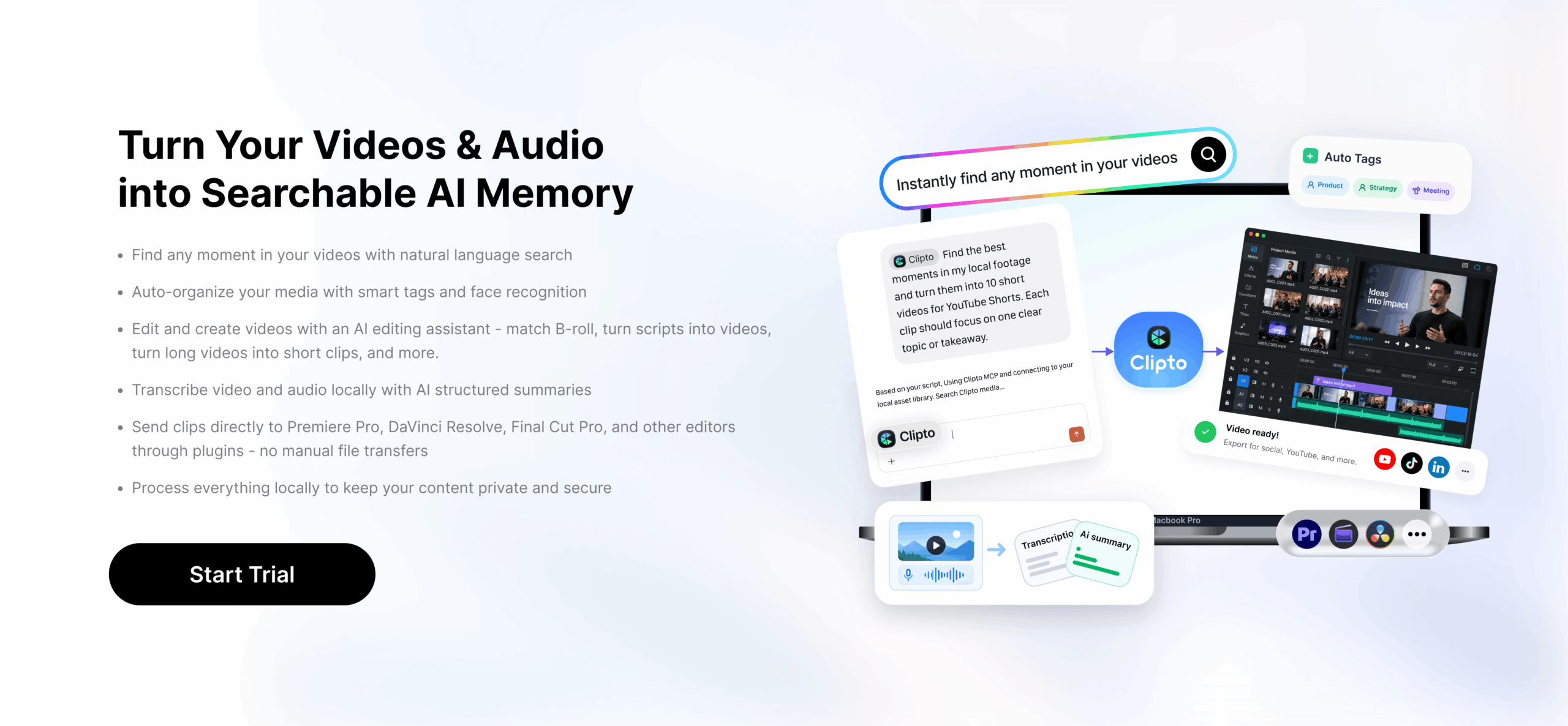
Clipto turns digital asset management into an AI-powered searchable media library. Your existing video and audio files stay on your Mac or Windows while Clipto automatically analyzes and tags your content. Find any clip faster by searching with natural language, people, dialogue, actions, or scenes, without manually organizing folders.
Step 1. Import Your Media Files Locally
Import video and audio files from your Mac / Windows or download online media directly into Clipto. Your content is processed locally on your device, keeping sensitive files private without uploading them online. Build a searchable media library and manage your content more efficiently.
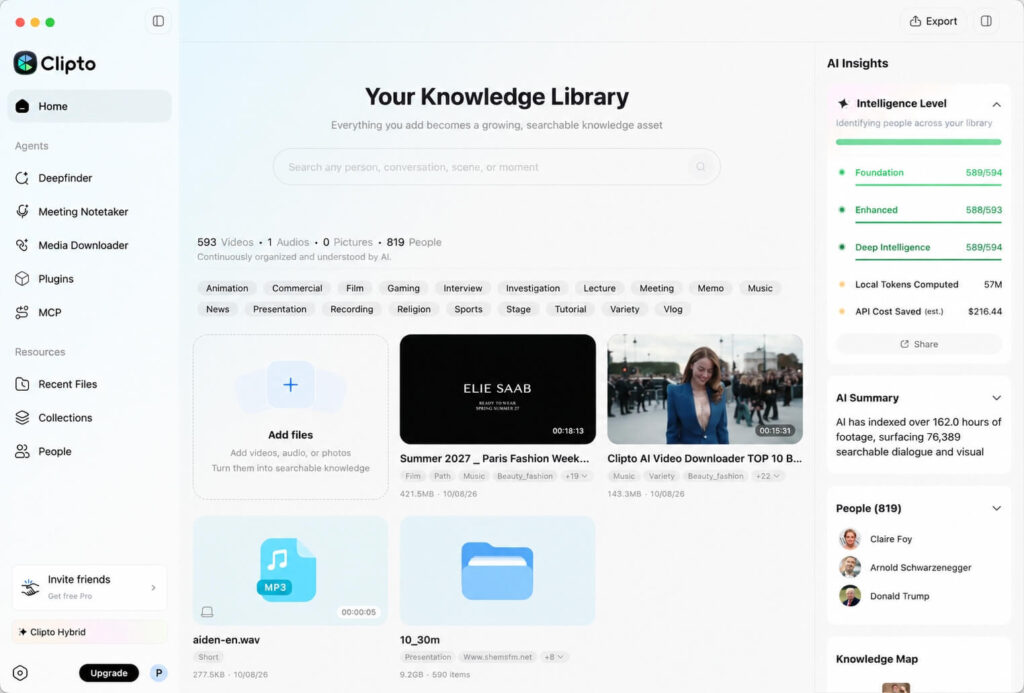
Step 2. Let AI Analyze and Tag Your Media
Clipto processes your video and audio files locally, automatically generating transcripts and tags based on people, dialogue, actions, and scenes. Your scattered media becomes a searchable library, making it easier to discover and manage every clip.
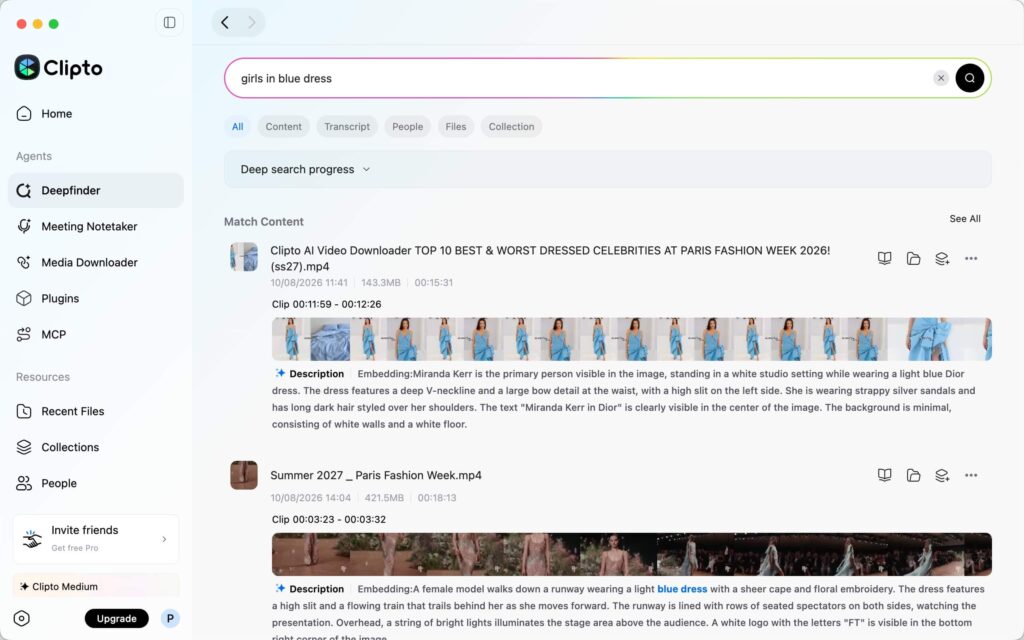
Step 3. Find Clips with Natural Language Search
Forget file names and manual searching. Simply describe the clip you need in your own words, and Clipto finds the right moments based on visual details, spoken words, people, actions, and scenes.
Examples:
- “Interview where Sarah talks about the product launch”
- “Person standing in front of a blue background”
- “Outdoor clip with a dog running”
- “Speaker mentioning pricing”
- “City footage at night”
Clipto understands the content inside your videos, helping you quickly find the exact clips without scrubbing through hours of footage.
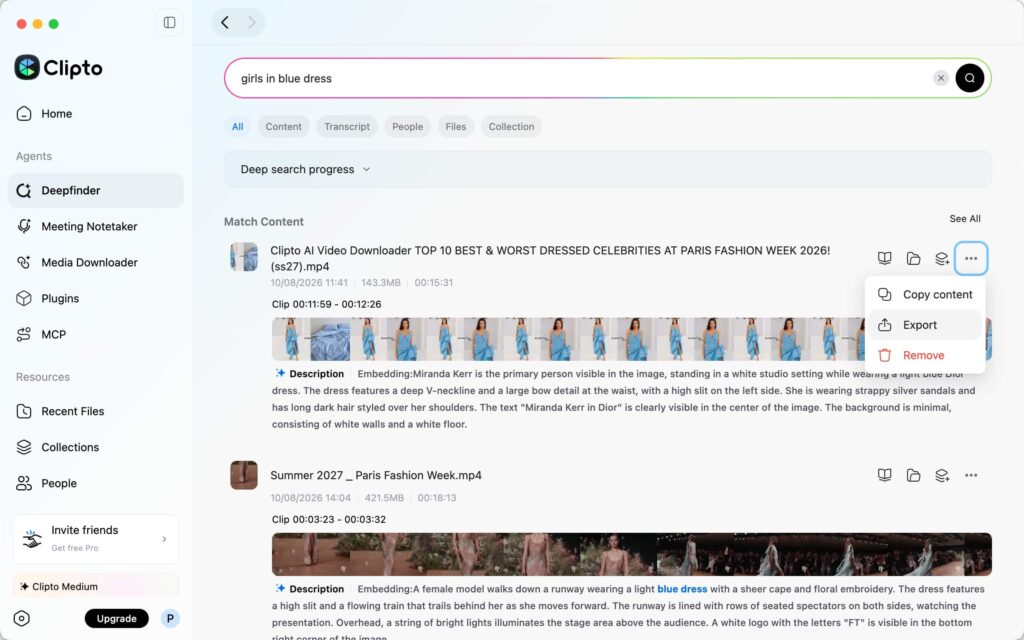
Step 4. Export and Continue Editing
Export your clips and transcripts, or move your selected footage directly into editing tools like Adobe Premiere Pro, Final Cut Pro, and DaVinci Resolve. Keep your workflow smooth from finding the right moment to creating the final video.
Conclusion
Effective asset management is about more than organizing folders, it’s about making your content easy to find, reuse, and create with. As your video and audio library grows, searchable metadata helps you quickly discover clips by people, dialogue, actions, objects, and scenes without remembering file names or folder locations.
With Clipto, your media becomes an intelligent, searchable library while your files stay local and under your control. Use natural language search to find the exact moments you need and spend less time searching, more time creating.
Start organizing and searching your video and audio library with Clipto today.
FAQs
What is asset management for content creators?
Asset management is the process of organizing, describing, searching, retrieving, and reusing the digital files behind your creative work. That includes videos, audio recordings, images, graphics, and project materials. The goal is simple: keep useful content accessible instead of letting it disappear into old folders and forgotten drives.
What does a digital asset manager do?
A digital asset manager helps users organize and retrieve media through folders, metadata, tags, transcripts, and search tools. The term can refer to software that manages a digital library or a professional responsible for maintaining a company’s media assets. For creators, it usually means a tool that makes footage easier to locate and reuse.
How does digital asset management help video creators?
Digital asset management cuts down the time spent opening folders, checking similar files, and scrubbing through long recordings. Instead of recreating a shot or abandoning useful footage, creators can find material they already have and bring it back into videos, podcasts, social clips, or future projects.
Can a digital asset manager search inside videos?
Yes, some AI-powered tools can search far beyond the file name. Depending on the software, they may identify spoken dialogue, people, objects, actions, and scenes inside the footage. That means a search such as “blue background,” a speaker’s name, or a quote from an interview can lead directly to the relevant clip or moment.
Does Clipto upload creator footage to the cloud?
The Clipto Mac app analyzes media locally on the device. Your original video and audio files remain on your Mac or connected storage locations rather than being uploaded simply for content analysis. This keeps creator footage under your control while making it searchable through people, dialogue, actions, and scenes.