
Looking for the best video compressor to reduce video file size without losing quality? Whether you want to share videos online for Discord, YouTube, WhatsApp, send them via email, save storage space, or upload files faster, choosing the right tool can make a difference. In this guide, we’ll explore 10 free video compressors online or offline and show you how to compress a video for free on Windows, Mac, iPhone, and Android. And these video compressors also cover popular formats like MP4, MOV, MKV and AVI to help you find the best solution to reduce video file size for your needs.
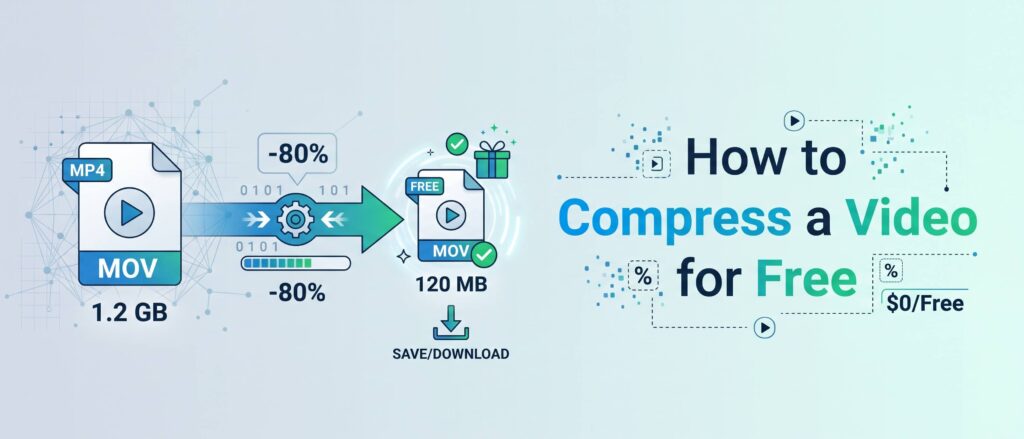
Part 1. 10 Best Free Video Compressors
Not all free video compressors offer the same features, file-size limits, or compression options. Some are better for quick online tasks, while others provide advanced settings or work directly on your computer or phone. To help you find the right fit, we’ve compared 10 popular free video compressors based on their key features, ease of use, and best use cases, including tools for compressing videos for Discord, email, and other sharing platforms.
1. FreeConvert Video Compressor
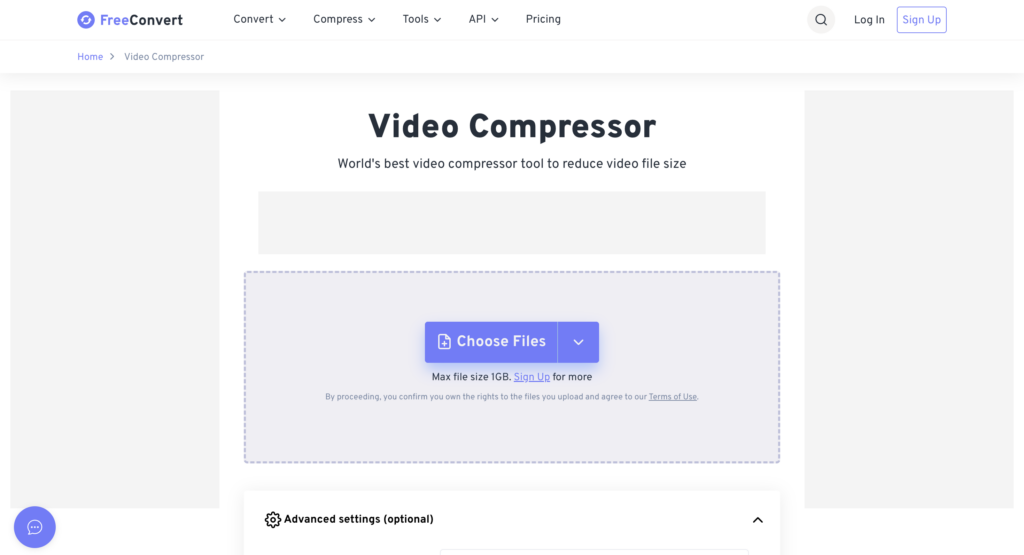
FreeConvert Video Compressor is an online tool that helps you reduce video file sizes without installing desktop software. You can upload videos from your device or import them from cloud storage and a URL. Its advanced settings let you choose a video codec, adjust the compression level, and target a specific output file size.
This tool is useful when you need to compress MP4 and other video files for email attachments, websites, or social media. The free version supports files up to 1 GB, while larger file sizes require an upgrade or account options depending on the current plan.
Pros
- Work online without installing software.
- Offer file-size and video-quality compression options.
- Support cloud storage and URL imports.
Cons
- The free file-size limit may be restrictive for large videos.
- More advanced usage may require a paid plan.
2. Clideo Video Compressor
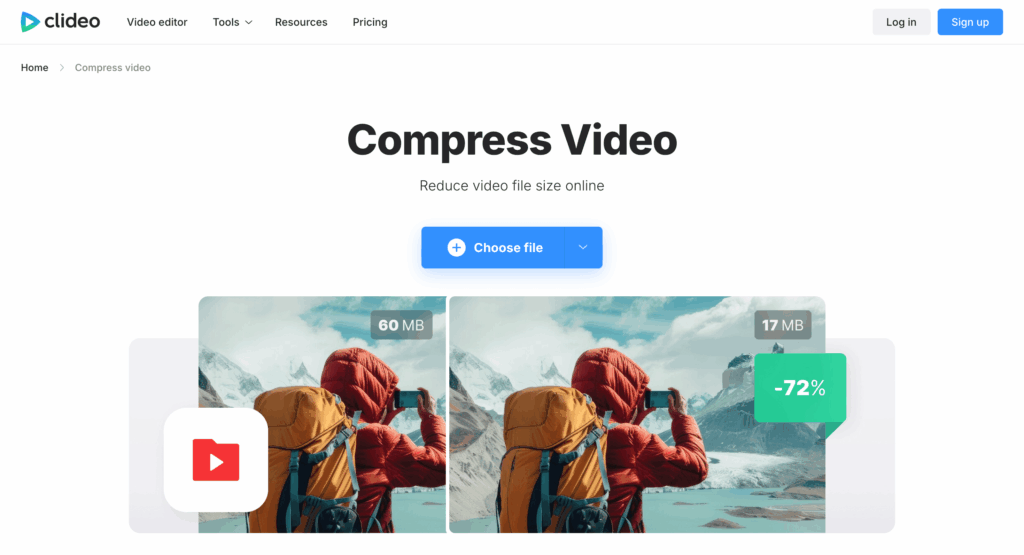
Clideo Video Compressor is a browser-based tool designed to make video compression straightforward. Upload a video, choose the available compression settings, and export a smaller file without installing a separate application. It is a convenient option for people who want to compress video before sharing clips through messaging apps, email, or social platforms.
The video file size reducer also provides other video editing tools, so you can use its platform for more than compression. However, its free plan has limitations: free users can upload files up to 500 MB and export videos with a watermark. Higher-quality exports and watermark-free downloads require a paid plan.
Pros
- Easy-to-use interface for beginners.
- No software installation required.
- Include additional online video editing tools.
Cons
- Free exports include a watermark.
- The free upload limit is 500 MB.
3. OpenReplay Video Compressor
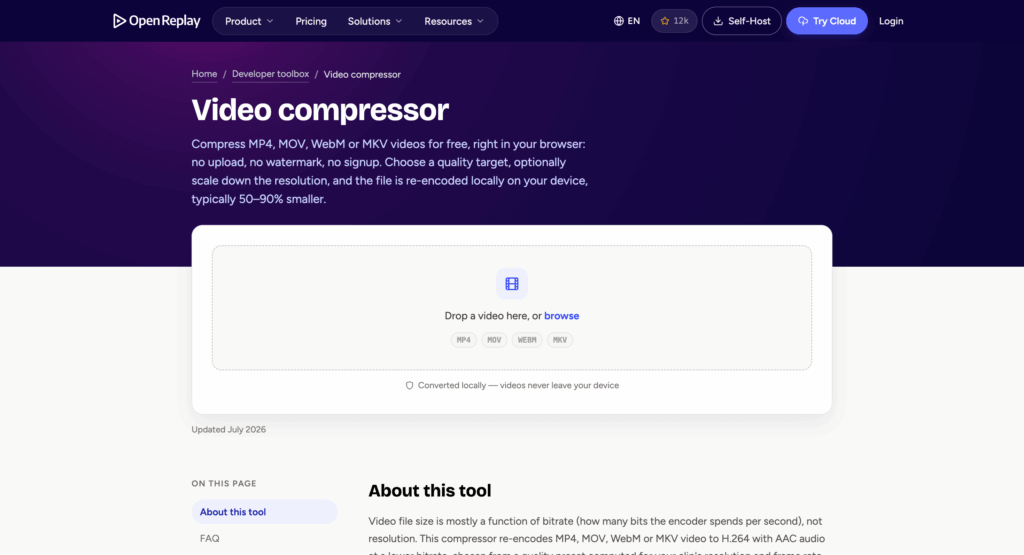
OpenReplay Video Compressor is a free online video compressor that processes files directly in your browser. Unlike many cloud-based tools, it does not upload your videos to a remote server. This makes it an appealing choice if you want to compress personal recordings, work footage, or other files that you prefer to keep on your device.
The video compress software supports MP4, MOV, WebM, and MKV videos. You can select a quality level and optionally reduce the resolution to make the output file smaller. OpenReplay is particularly useful when privacy matters or when you want to compress a video without creating an account.
Pros
- Free to use without signing up.
- Process videos locally in the browser.
- Support quality and resolution adjustments.
Cons
- Compression speed depends on your device and browser.
- Very large videos may require substantial device memory.
4. VidShift Video Compressor
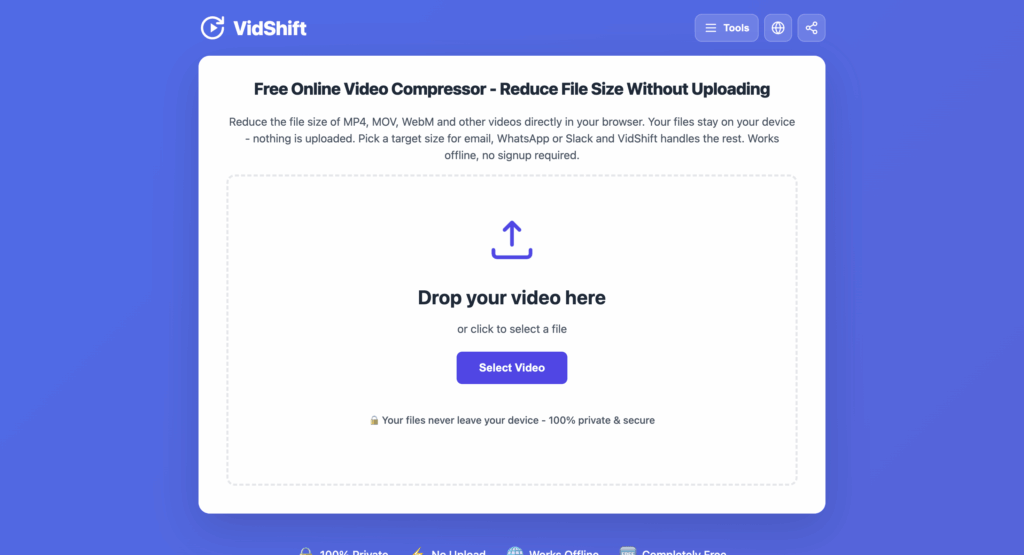
VidShift Video Compressor is a browser-based tool that lets you compress videos without uploading your files to a remote server. It supports common formats such as MP4, MOV, MKV, and WebM, making it suitable for everyday video compression tasks.
One useful feature is its target-size presets. You can select a size intended for email or messaging platforms, or enter a custom size for your own requirements. VidShift also offers codec and resolution options to help balance file size against visual quality. Because the compression runs locally, it can be a practical choice for users who value privacy and want to compress videos without installing software.
Pros
- No account or software installation required.
- Support target file sizes for sharing.
- Process files locally in your browser.
Cons
- Processing performance depends on your device.
- Aggressive compression may reduce image quality.
5. Adobe Video Compressor
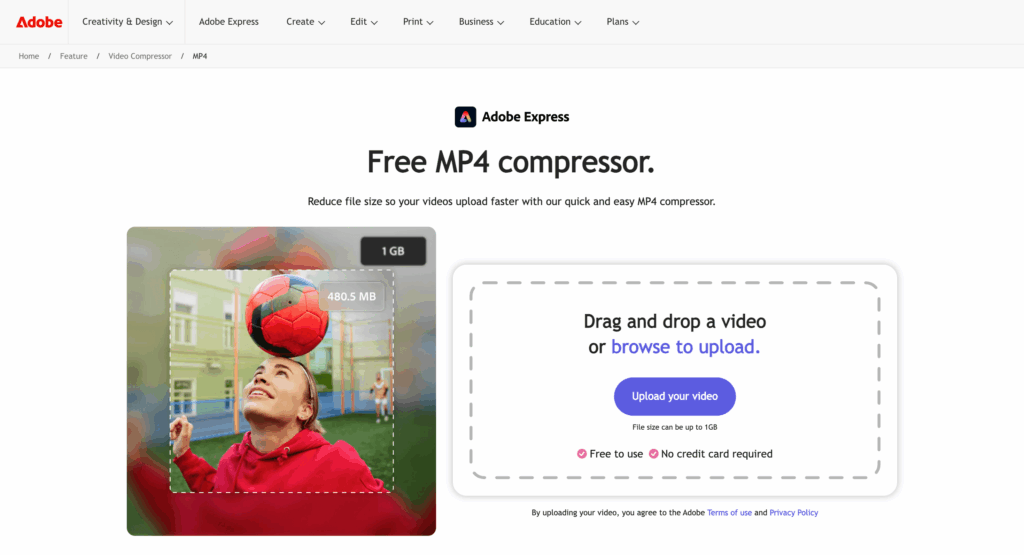
Adobe Express Video Compressor is an online tool for reducing MP4 file sizes before uploading or sharing videos. Its interface is simple: upload a video, adjust the compression slider, review the estimated output size, and download the compressed file. You can then continue editing the video with Adobe Express if needed.
Adobe Express supports files up to 1 GB through its MP4 compression tool and can handle videos with resolutions ranging from 480p to 4K. It is a good option for content creators who want to make videos easier to upload to social media, send to colleagues, or store on their devices without using dedicated desktop software.
Pros
- Straightforward compression controls.
- Free to use without a credit card.
- Integrate with other Adobe Express editing features.
Cons
- The dedicated compressor focuses on MP4 files.
- The maximum upload size is 1 GB.
6. Vimeo Video Compressor
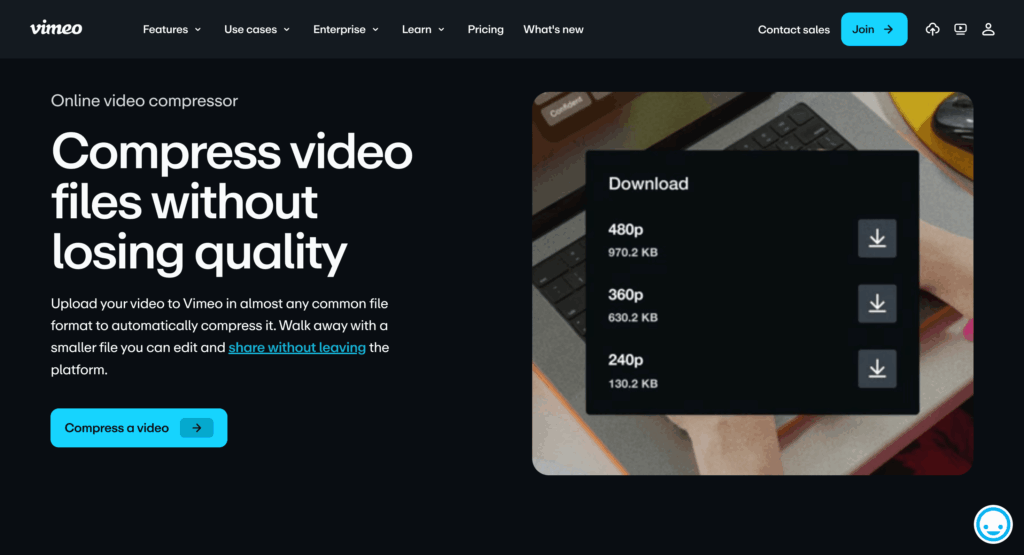
Vimeo Video Compressor is designed for people who upload, manage, edit, and share video content online. Vimeo automatically compresses videos during upload, helping optimize playback and delivery without requiring you to configure a separate desktop encoder.
However, Vimeo’s automatic compression is not the same as exporting a local file to an exact target size. If you need a video under a specific attachment limit for email, WhatsApp or Discord, check whether Vimeo’s workflow meets that requirement before choosing it.
Pros
- Combine video hosting, editing, and sharing.
- Automatically processes uploaded videos.
- Useful for ongoing video publishing workflows.
Cons
- Less suitable when you need precise control over a downloadable file’s size.
- Some capabilities depend on your Vimeo plan.
7. HandBrake Video Compressor
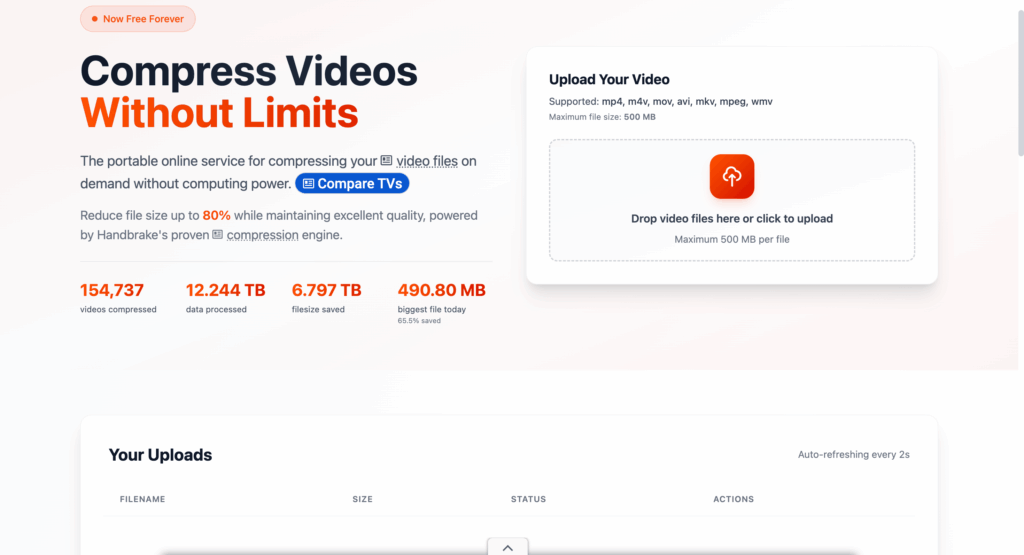
HandBrake is a free, open-source video transcoder for Windows, Mac, and Linux. It allows you to compress videos directly on your computer without uploading them to an online service. You can adjust video quality, resolution, and encoding settings to reduce file sizes while balancing output quality.
With support for MP4, MKV, and WebM output formats, HandBrake is a good choice for users who want more control over how they compress a video, especially when working with large files or multiple videos.
Pros
- Completely free and open source.
- Available for Windows, Mac, and Linux.
- Offer detailed encoding and quality settings.
- Support batch processing.
Cons
- Require installation.
- The number of settings may be overwhelming for beginners.
- Compression can take time, depending on the video and hardware.
8. Panda Video Compressor
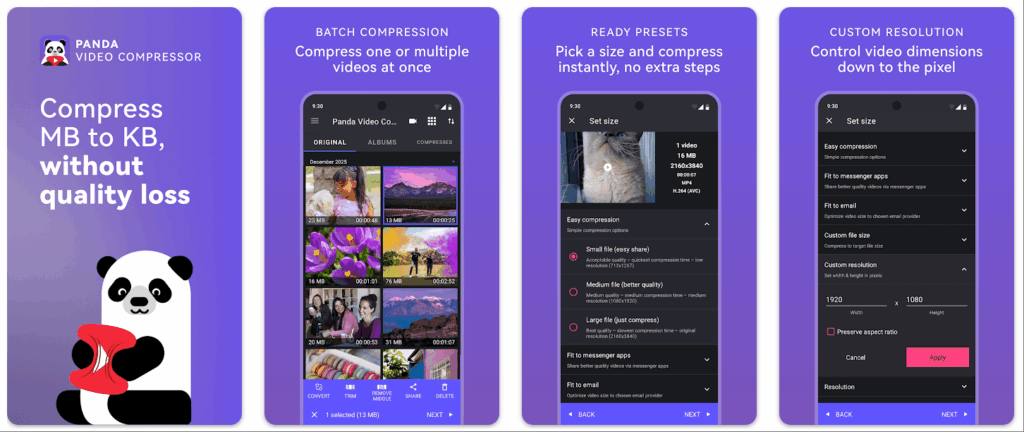
Panda Video Compress & Convert is a mobile app that helps you compress videos directly on your iPhone or Android. It is useful when you need to reduce a video’s size before sharing it through messaging apps, sending it via email, or freeing up storage space.
You can choose compression settings and adjust video resolution to balance file size and quality. If you want to compress a video on the go without transferring it to a computer, Panda offers a convenient mobile solution. The app is free to download, with in-app purchases available.
Pros
- Designed for mobile use.
- Combine compression, resizing, and conversion.
- Useful for sharing videos directly from a phone.
Cons
- Some features may require in-app purchases.
- Less convenient than desktop software for managing large batches of footage.
9. Dropbox Video Compressor
Dropbox is primarily a cloud storage and file-sharing service rather than a dedicated video compressor. If you need to share a large video via email, you can upload it to Dropbox and send a sharing link instead of attaching the file.
This approach lets you share videos without having to compress a video to meet an email attachment limit. However, if you specifically need to reduce file size, you’ll need a separate video compression tool before uploading the file to Dropbox.
Pros
- Convenient for sharing large videos through links.
- Support large file uploads.
- Useful for collaboration and cloud storage.
Cons
- Does not provide a dedicated video compression workflow.
- Upload and storage limits depend on the account and method used.
10. 8MB Video Compressor
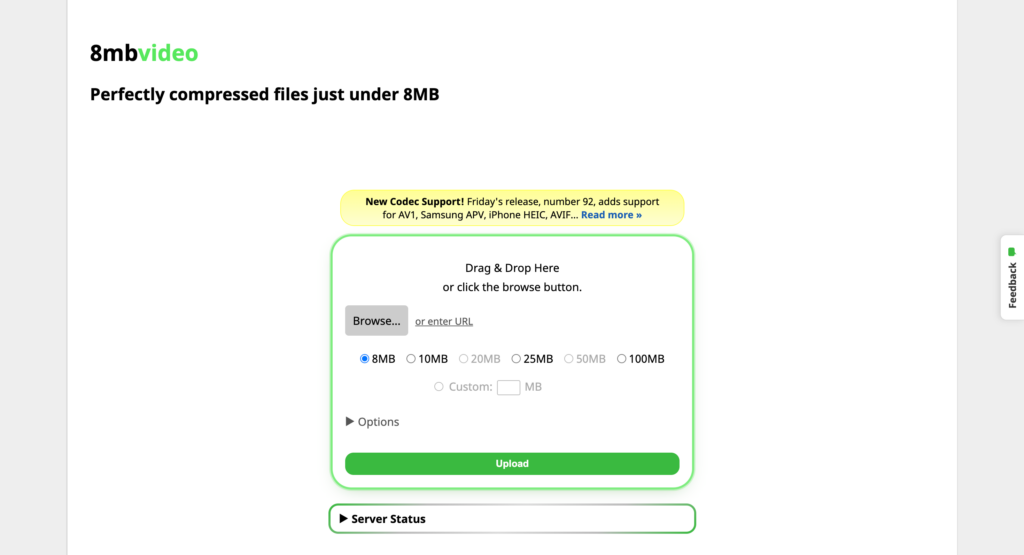
8MB Video Compressor is an online tool designed to help users compress videos to a specific file size, making it especially useful for Discord and other platforms with upload limits. You can select a target size and adjust available settings to reduce the video’s size while preserving as much quality as possible.
If you need to compress a video for Discord, email, or another sharing platform, check the platform’s current file-size limit before choosing your compression target. Keep in mind that more aggressive compression may reduce video quality.
Pros
- Designed around specific output-size targets.
- Useful for Discord and other file-size-limited sharing.
- Offer trimming and audio-removal options.
Cons
- More specialized than a general-purpose video editor.
- Strong compression may noticeably reduce quality, especially for longer videos.
Part 2. How to Compress Video for Free
There are several ways to compress a video for free, depending on your device and how you plan to share it. You can use an online video compressor, desktop software, or a mobile app to reduce file size while maintaining acceptable video quality.
1. How to Compress Video Online for Free
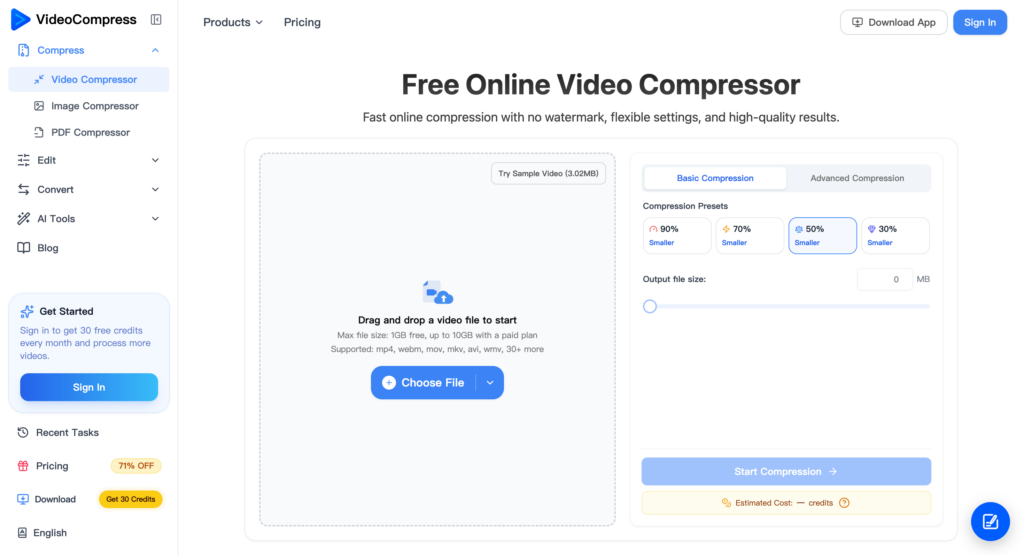
You can use online tools like FreeConvert, Clideo, or VidShift to compress a video without installing software to compress videos. Online approaches are convenient for quick tasks, but check their free file-size limits before uploading large videos.
Step 1. Open your preferred online video compressor.
Step 2. Upload your video or select a file from a supported source.
Step 3. Adjust the compression level, resolution, or target file size if available.
Step 4. Start compression and download the smaller video.
2. How to Compress Video Offline for Free
If you prefer to compress videos without uploading them to the cloud, use free desktop software such as HandBrake. Compressor video offline is a good option for compressing large video files and processing multiple videos with more control over quality and encoding settings.
Step 1. Download and install HandBrake on your computer.
Step 2. Open the software and import your video.
Step 3. Choose an output format, such as MP4, and select an encoding preset.
Step 4. Adjust the video quality or resolution to reduce the file size.
Step 5. Choose a destination and click Start Encode to save the compressed video.
3. How to Compress Video on iPhone
To compress a video on your iPhone, you can use a mobile app such as Panda Video Compress & Convert or an online tool like FreeConvert.
If you frequently record videos, using a lower recording resolution in your iPhone camera settings can also help reduce file sizes in the future.
Step 1. Open your chosen app or video compressor website.
Step 2. Select the video you want to compress from your Photos or Files.
Step 3. Choose a lower resolution or compression setting.
Step 4. Start compression and save the smaller video to your device.
4. How to Compress Video on Android
Android users can use a video compression app such as Panda Video Compress & Convert, Compress Video Size Compressor, Video Converter, Compressor, if available for their device, or access an online tool through a browser.
Step 1. Open the compression app or website.
Step 2. Select a video from your phone’s gallery or file manager.
Step 3. Choose a smaller resolution or an appropriate compression level.
Step 4. Compress the video and save the output to your device.
5. How to Compress Video for Discord
If your video exceeds Discord’s upload limit, you can use 8MB Video Compressor or VidShift to reduce its file size. The right target depends on your account’s current upload limit.
If the video is still too large, try lowering its resolution or trimming unnecessary footage. Avoid excessive compression, as it can noticeably reduce video quality.
Step 1. Open 8MB Video Compressor or VidShift in your browser.
Step 2. Upload or select the video you want to share.
Step 3. Set a target file size that fits within Discord’s upload limit.
Step 4. Start compression and download the result.
Step 5. Upload the compressed video to Discord to check that it meets the limit.
Conclusion
Choosing the best video compressor depends on your device, file-size requirements, and desired video quality. Whether you use an online tool like FreeConvert, desktop software like HandBrake, or a mobile app like Panda, you can find a free way to compress videos for everyday sharing and storage. If you need to compress a video for Discord, WhatsApp or email, choose a suitable target file size and adjust the resolution or compression level as needed. With the right tool, you can reduce video file sizes while keeping your videos clear and easy to share.
FAQs
1. How to Compress an MP4 Video?
You can use an online tool like FreeConvert, Clideo, Veed or desktop software like HandBrake to compress an MP4 video. Upload or import the file, adjust the resolution or compression settings, and export a smaller MP4 file.
2. How to Compress a Video to 10MB, 25MB, or 50MB?
Use a video compressor that supports custom file sizes, such as VidShift. Upload your video, set the target size to 10MB, 25MB, or 50MB, and start compression. If the file is still too large, lower the resolution or trim unnecessary footage.
3. How to Compress a Video on CapCut?
Open CapCut and import your video. Click Export and choose a lower resolution, frame rate, or bitrate to reduce the file size. Export the video and check whether it meets your size requirements.
4. How to Compress a Video for Email?
Use an online video compressor like FreeConvert, 8MB or VidShift to reduce your video’s file size. Alternatively, lower the resolution or bitrate before exporting. If the video is still too large for an email attachment, upload it to Dropbox or another cloud storage service and share the link.
5. How to Compress a Video Online for WhatsApp?
Open an online video compressor such as FreeConvert, Vimeo or VidShift and upload your video. Reduce the resolution or set a smaller target file size, then download the compressed video and send it through WhatsApp. Check WhatsApp’s current file-sharing limits before compressing.