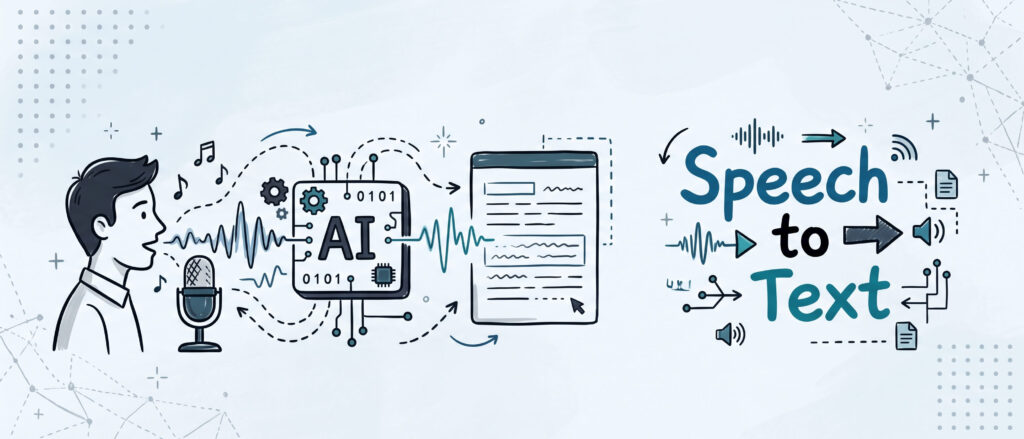
Speech-to-text tools turn audio into text quickly and accurately, helping you move beyond simple dictation and work with different types of audio content.
These softwares can tell different speakers apart, work in real time, extract useful information from your content, and support different transcription needs. Some users need speech to text online free for quick notes, while others need live speech to text or a fuller AI transcription workflow for audio, video, and private files. In this guide, we compare 8 speech to text converters to show how they work, what they offer, and which one fits your needs.
Part 1. Clipto: Best for Online, Local, and Live Transcription
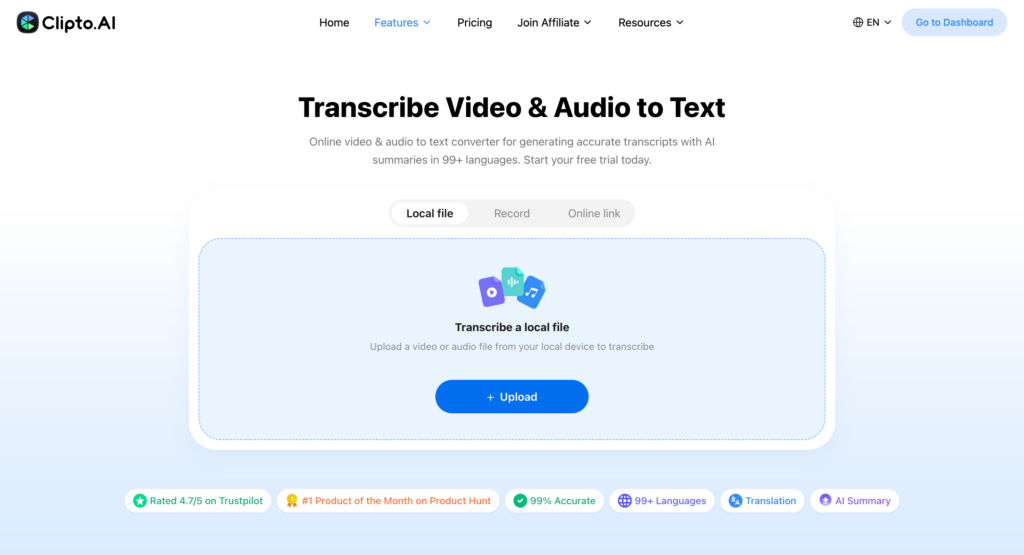
Clipto is an AI transcription tool that converts audio and video into accurate, editable, and searchable text. It supports online media transcription, local file transcription, and real-time transcription, making it ideal for content creators, marketers, researchers, podcasters, educators, and professionals who work with recorded or live content.
With Web, Mac, and Windows versions, Clipto adapts to different workflows. Use Clipto Web to upload audio or video files, transcribe online media such as YouTube videos, or record audio for live transcription. With Clipto Mac and Windows, you can transcribe local audio and video files directly on your computer without uploading them to the cloud, ideal for private files and creator workflows.
Clipto’s Core Features
Clipto offers a range of AI transcription features for users who need more than a basic speech to text software. Here’s a closer look at what makes Clipto a strong choice for online transcription, private files, and creator workflows.
AI Speech to Text for Audio and Video
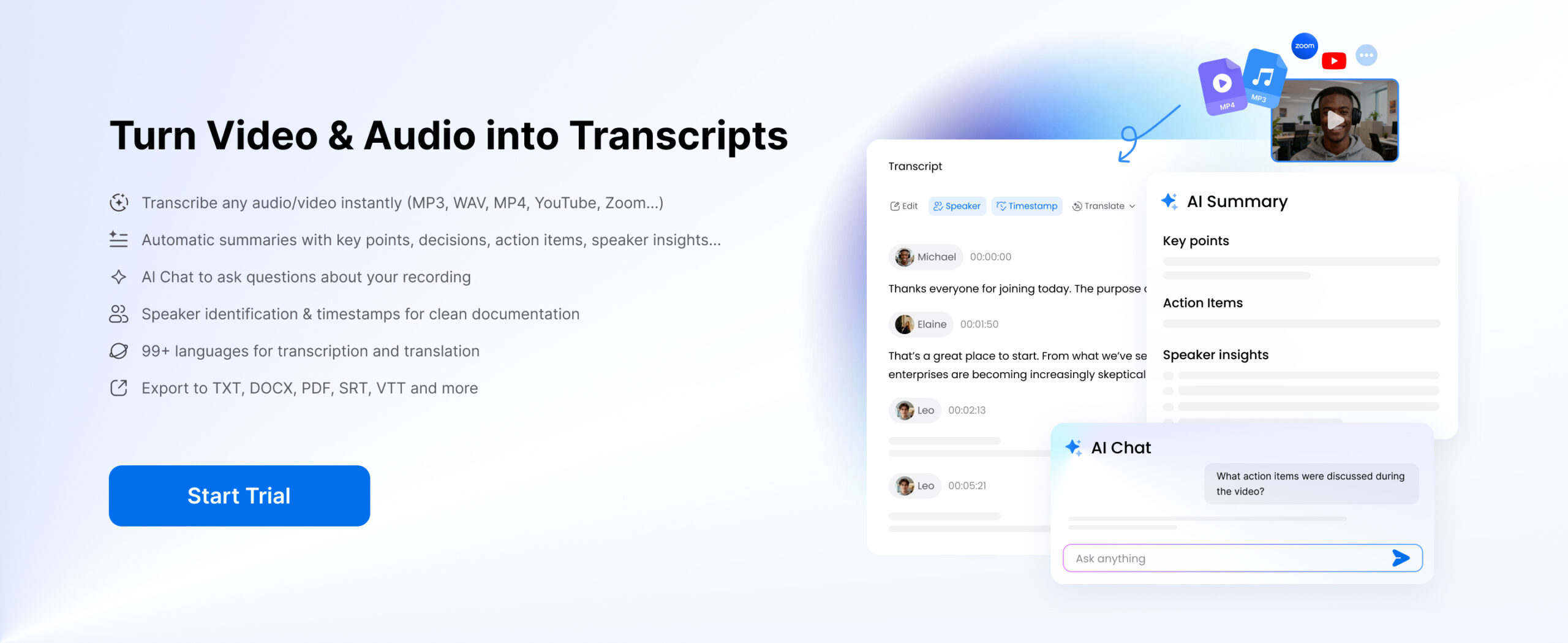
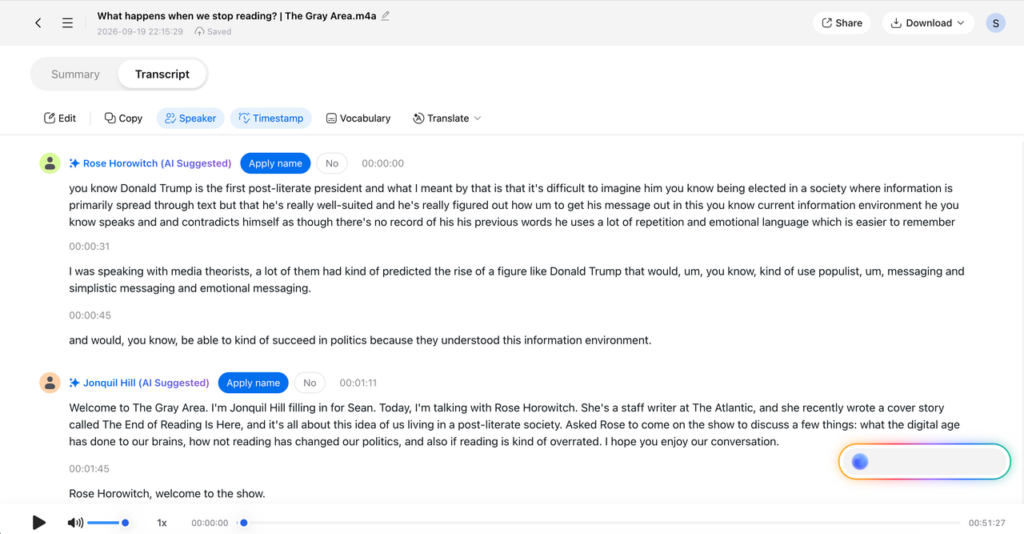
Clipto converts spoken content from audio and video into written text within minutes. Users can upload a file, paste a media link, or record new audio, then get a searchable transcript with speaker identification and timestamps. This makes it useful for podcasts, interviews, meetings, lectures, voice notes, and video content, especially when creators need to create podcast transcripts for editing, repurposing, or publishing.
Quick Online Transcription
Clipto Web works well for users looking for speech to text online free or a fast way to transcribe files online. It is suitable for quick tasks where users want to upload a recording, generate a transcript, and review the text without setting up a full desktop workflow.
Private Transcription for Private Local Files
Transcribe audio and video files privately with Clipto’s Mac and Windows apps. Process local files directly on your computer without uploading them to the cloud, helping you keep sensitive recordings and documents on your device. It’s ideal for professionals handling confidential content, including medical, legal, and business recordings.
Live Transcription
Turn spoken words into text in real time with Clipto’s live transcription feature. Simply select Record to capture audio and generate a transcript as you speak. It’s ideal for lectures, meetings, interviews, and other situations where you need to capture important information as it happens.
Speaker Identification and Timestamps
Clipto speech to text tool can label different speakers and add timestamps to the transcript. This helps users follow conversations more clearly, jump to exact moments in a recording, and review interviews, meetings, or podcast clips without replaying the entire file.
Translate Transcripts
Break language barriers by translating transcripts into other languages with Clipto speech to text converter. Turn transcribed audio and video content into text that’s easier to understand, share, and repurpose across different audiences. It’s useful for multilingual teams, international content creators, researchers, and anyone working with content in multiple languages.
AI Summaries
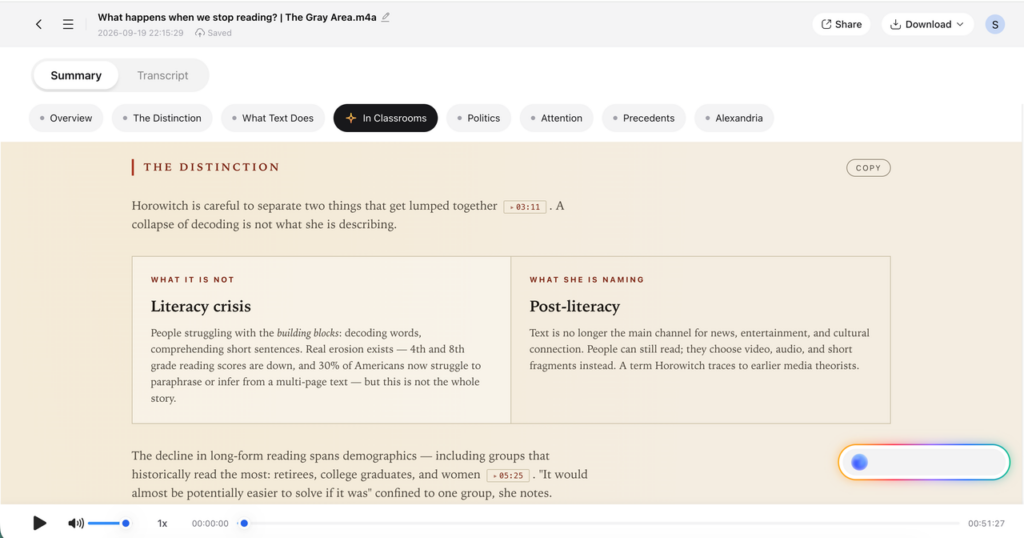
Save time with AI-generated summaries that turn lengthy transcripts into concise, easy-to-read insights. Quickly review key points, important decisions, action items, and other relevant details without reading the entire transcript. Whether you’re reviewing meetings, lectures, interviews, or podcasts, Clipto speech to text software helps you find the information that matters faster.
Flexible Export Options
After transcription, users can export the speech transcript in formats such as DOCX, TXT, SRT, VTT, XML, or FCPXML, depending on the version and workflow. This is useful for writers, editors, podcasters, and video creators who need transcripts for articles, subtitles, editing software, or content planning.
Part 2. Google Docs Voice Typing / Google Cloud Speech to Text: Best for Google Users
Google Docs Voice Typing positions itself differently from full speech-to-text platforms, focusing primarily on real-time dictation rather than audio or video file transcription.
The feature is especially useful for users who want to speak directly into a document and see the text appear on screen. In Google Docs, users can open a document, go to Tools > Voice typing, and start dictating quick notes, drafts, or simple written content.
Google Cloud Speech-to-Text is the more advanced option. It is designed for developers and businesses that need to convert audio into text or integrate speech recognition into their own applications.
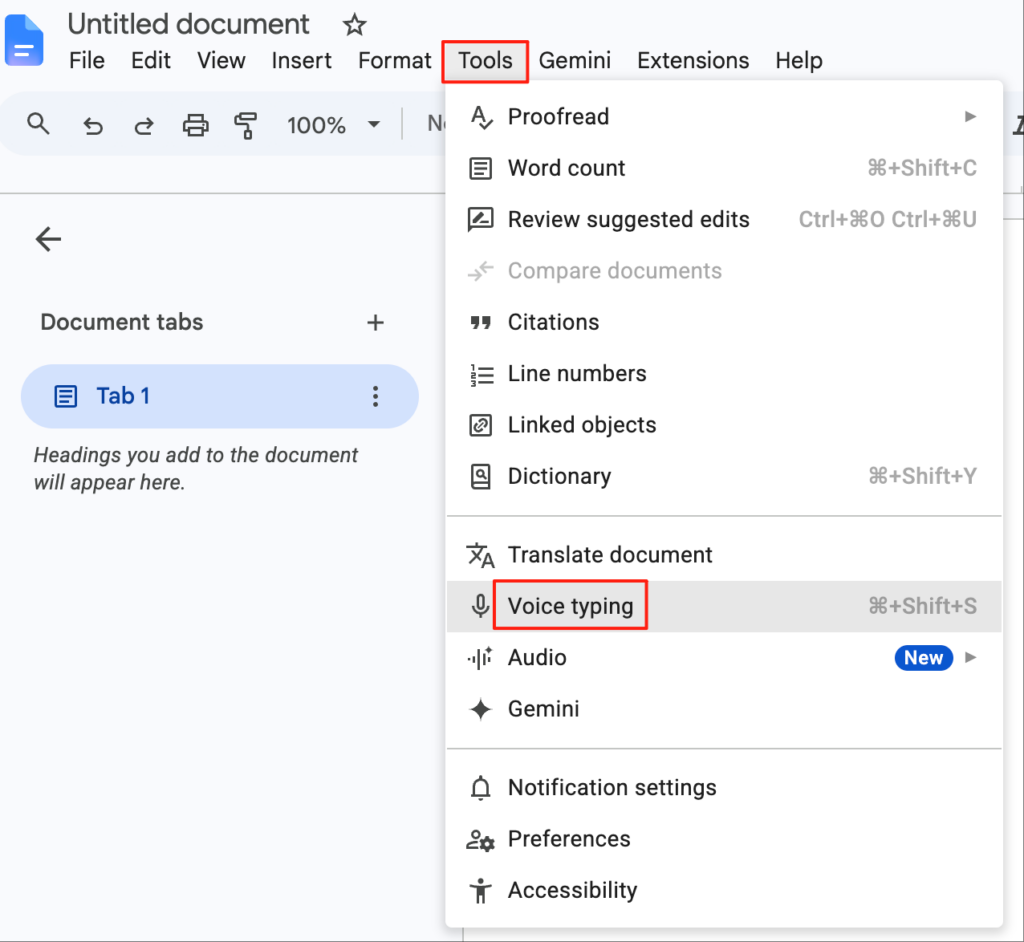
Free Voice Typing: Google Docs Voice Typing gives users a free way to turn speech into text inside a document. It works well for simple dictation, quick notes, outlines, and users who need live speech to text without using a separate transcription platform.
Google Cloud Option: Google Cloud Speech-to-Text offers API-based transcription for more technical use cases. It is better suited for companies, developers, and product teams that want to add speech recognition to apps, platforms, or internal workflows.
Google Workflow Integration: Both options fit naturally into Google-based workflows. Google Docs is useful for everyday writing and short dictation, while Google Cloud Speech-to-Text supports more customized speech-to-text systems.
Possible Drawback: Google Docs Voice Typing is not ideal for uploading and transcribing long audio or video files. Google Cloud Speech-to-Text is powerful, but it can be too technical for casual users who simply want to upload a file and get a clean transcript.
Part 3. Otter.ai: Best for Live Meeting Transcription
Otter.ai is another well-known speech to text tool, thanks to its real-time transcription capabilities. This makes it a useful choice for meetings, lectures, interviews, and team calls, as users can see the transcript appear while the conversation is still happening.
The platform is especially useful for people who need to capture discussions as they unfold. Users can record conversations, generate live transcripts, review meeting notes, and share them with teammates or collaborators after the session.
However, Otter.ai is more focused on meetings than on broader creator workflows. If you need to manage long audio files, video projects, podcasts, subtitles, or private local media libraries, a tool like Clipto may be a better fit.
Real-Time Transcription: Otter.ai can convert spoken words into text as people are speaking. This makes it useful for users who need live speech to text during meetings, lectures, interviews, or online discussions.
Speaker Identification: The app can separate different speakers in a conversation and label their contributions in the transcript. This helps users follow the discussion more clearly, especially in group meetings or multi-person interviews.
Meeting Notes: Otter.ai can help users capture meeting notes, summaries, and key discussion points. This is useful for teams that want to review conversations without listening to the full recording again.
Collaboration and Sharing: Users can edit, organize, and share transcripts with others. This makes Otter.ai practical for teams, students, journalists, and professionals who need to keep meeting records easy to access.
Possible Drawback: Otter.ai works best for live conversations and meeting notes. It may be less suitable for content creators who need to transcribe, search, and organize large audio or video libraries across different projects.
Part 4. Sonix: Best for Fast AI Transcription and Translation
Sonix is a well-known name in the transcription industry due to its AI-powered speech recognition, fast processing, and support for transcription and translation in one platform.
The platform supports multiple languages and offers an easy-to-use interface for editing, reviewing, and exporting transcripts. Sonix is suitable for businesses, researchers, and teams that need to work with interviews, meetings, webinars, or multilingual content.
Sonix is an excellent choice for users who need fast speech to text transcription with speaker labels, timestamps, and flexible export options. Its translation tools also make it useful for teams that need to repurpose audio or video content across different languages.
The app’s AI transcription features help users turn spoken content into readable text, even when the recording includes multiple speakers or longer discussions. Sonix also offers features like speaker identification, timestamping, translation, and the ability to export transcripts in various formats.
Fast AI Transcription: Sonix uses AI-powered speech recognition to convert audio and video files into text quickly. This makes it a practical option for users who need transcripts for business meetings, interviews, webinars, research calls, or recorded discussions.
Speaker Identification: The speech to text converter can distinguish between different speakers and label them in the transcript. This feature is helpful for multi-person interviews, team meetings, panel talks, and academic discussions where the flow of conversation matters.
Timestamping: Sonix adds timestamps to transcripts, making it easier to locate specific parts of the audio or video. Users can jump back to key moments, check quotes, or review important sections without searching through the full recording manually.
Translation and Language Support: Sonix supports multilingual transcription and translation, which makes it useful for global teams, researchers, and businesses working with content in more than one language.
Export Options: Sonix speech to text tool allows users to export transcripts in different formats for editing, sharing, subtitles, or documentation. This gives teams more flexibility when moving transcripts into other parts of their workflow.
Possible Drawback: Sonix may feel more business-focused than creator-file focused. For content creators who need to work with private local files, raw footage, or media stored directly on PC, Clipto professional transcription tool may be a better fit.
Part 5. Rev: Best for Human + AI Transcription
Rev is a reliable speech to text service that offers both human transcription and AI-powered transcription, giving users more flexibility based on their accuracy needs, budget, and turnaround expectations.
The platform works well for users who want more control over the final transcript. Human transcription is useful for interviews, business recordings, legal-style content, and complex audio where accuracy matters more than speed. The AI option is faster and more affordable, making it suitable for users who need a quick transcript without manual review.
Rev also supports audio and video files, making it easy to upload different types of recorded content. However, compared with AI-only speech-to-text tools, Rev can become expensive when users rely heavily on human transcription.
Accuracy and Speed: Rev’s human transcription option is designed for users who need a higher level of accuracy, especially when the recording includes technical content, important interviews, or business discussions. The AI transcription option is faster, but it may require more editing when the audio includes background noise, multiple speakers, or unclear speech.
Human and AI Transcription: Rev speech to text tool allows users to choose between human-generated transcripts and automated AI transcripts. This makes it useful for people who want to balance cost, speed, and accuracy depending on the project.
Audio and Video File Support: Rev supports a wide range of audio and video files, so users can upload meetings, interviews, webinars, lectures, or video recordings without needing to convert the file first.
Export Formats: The platform also allows users to export transcripts in different formats for editing, sharing, subtitles, or documentation. This is helpful for teams that need transcripts for business records, content production, or review.
Possible Drawback: Rev’s human transcription can be expensive compared with AI-only tools. For users who need frequent transcription for podcasts, videos, or large content libraries, a more flexible AI speech to text workflow may be more cost-effective.
Part 6. Happy Scribe: Best for Subtitles and Language Support
Happy Scribe is a versatile transcription and subtitle tool that combines AI transcription, human transcription, and subtitle editing in one platform.
The speech to text app stands out for its broad language support, making it a strong choice for creators, educators, researchers, and teams that work with multilingual content. It is especially useful when users need to create subtitles, translate transcripts, or prepare text versions of videos in different languages.
Happy Scribe’s interface is simple and easy to follow, though it may feel more focused on subtitles and language support than on private local file workflows.
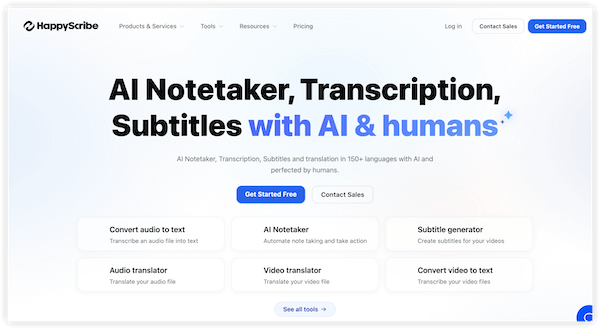
AI and Human Transcription: Happy Scribe offers both automated transcription and human transcription options. This gives users more flexibility depending on whether they need a faster AI transcript or a more carefully reviewed version.
Subtitle Tools: The platform is useful for users who need subtitles for videos, courses, interviews, or social media content. Its subtitle editor helps users review timing, adjust text, and prepare subtitle files for publishing.
Multilingual Support: Happy Scribe supports a wide range of languages and accents, making it a practical option for international content, academic recordings, multilingual interviews, and global teams.
Timestamps: The tool includes timestamps to help users move through the transcript and match text with the original audio or video. This is helpful when editing subtitles or reviewing longer recordings.
Export Options: This speech to text converter allows users to export transcripts and subtitles in different formats, making it easier to use the final text for editing, publishing, documentation, or video production.
Possible Drawback: Happy Scribe is strong for subtitles and multilingual transcription, but users who work mostly with private local files may prefer a Mac-based workflow like Clipto transcription tool on PC.
Part 7. Descript: Best for Editing Audio and Video Through Text
Descript is an all-in-one audio and video editing platform that goes beyond converting speech to text. It combines transcription with editing tools, making it a popular choice for podcasters, video creators, and teams that want to create content without using more complex editing software.
The platform’s main strength is its text-based editing workflow. Users can edit an audio or video file by editing the transcript, and the changes are reflected in the media timeline. This makes it easier to remove filler words, cut sections, clean up recordings, or shape a podcast or video from the transcript itself.
Descript is especially useful for creators who need transcription as part of the editing process. Instead of using one tool for speech to text and another tool for production, users can manage recording, editing, transcription, and collaboration in the same workspace.
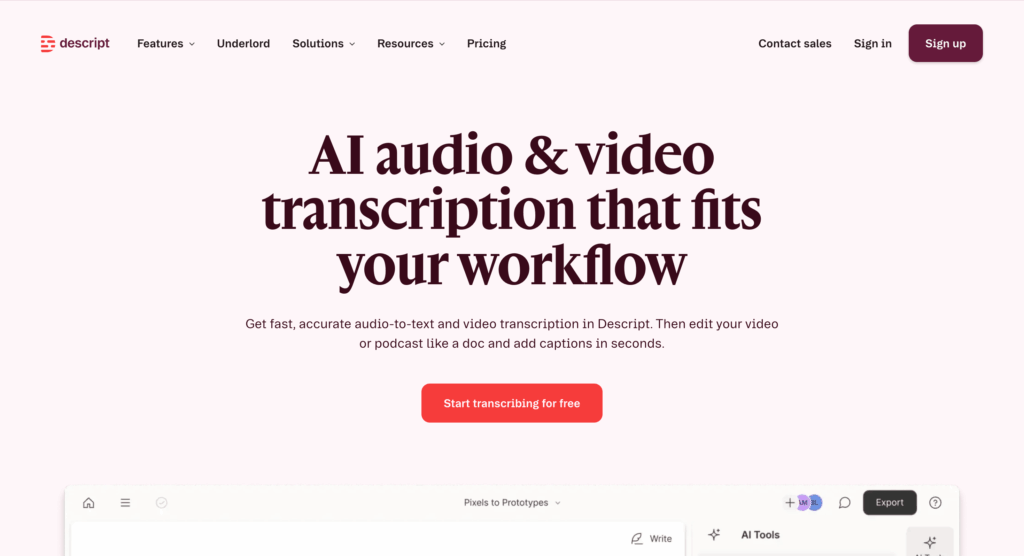
Audio and Video Transcription: Descript can transcribe audio and video files, giving users a written version of their content before editing. This is useful for podcasts, interviews, screen recordings, tutorials, and video projects.
Text-Based Editing: Descript’s editing workflow allows users to cut or change media by editing the transcript. This helps reduce the need to work directly with a traditional video or audio timeline.
Podcast Editing: The speech to text platform is a good fit for podcasters who need to record, transcribe, edit, and publish episodes. It can help remove unwanted sections, clean up dialogue, and organize spoken content more easily.
Screen Recording: Descript also includes screen recording tools, making it useful for tutorials, product demos, online courses, and other video content that starts with a recording.
Collaboration Tools: Descript supports team collaboration, allowing users to share projects, review edits, and work together on audio or video content.
Possible Drawback: Descript may be too editing-heavy for users who only need a clean transcript. If the main goal is to transcribe audio or video files quickly, a more focused speech to text tool may be easier to use.
Part 8. Fireflies.ai: Best for Meeting Summaries and AI Insights
Fireflies.ai is an AI-powered transcription tool that focuses on transcribing and analyzing meetings, calls, and voice conversations. It is built for teams that need more than a basic transcript from their discussions.
The platform can record conversations, generate transcripts, summarize key points, and pull action items from meetings. This makes it useful for sales teams, managers, recruiters, and remote teams that need to review decisions and follow-up tasks after a call.
This speech to text tool also connects with popular meeting and collaboration tools, allowing users to capture and organize meeting content across different platforms. However, its workflow is more focused on meetings than on local audio, video, or podcast files.
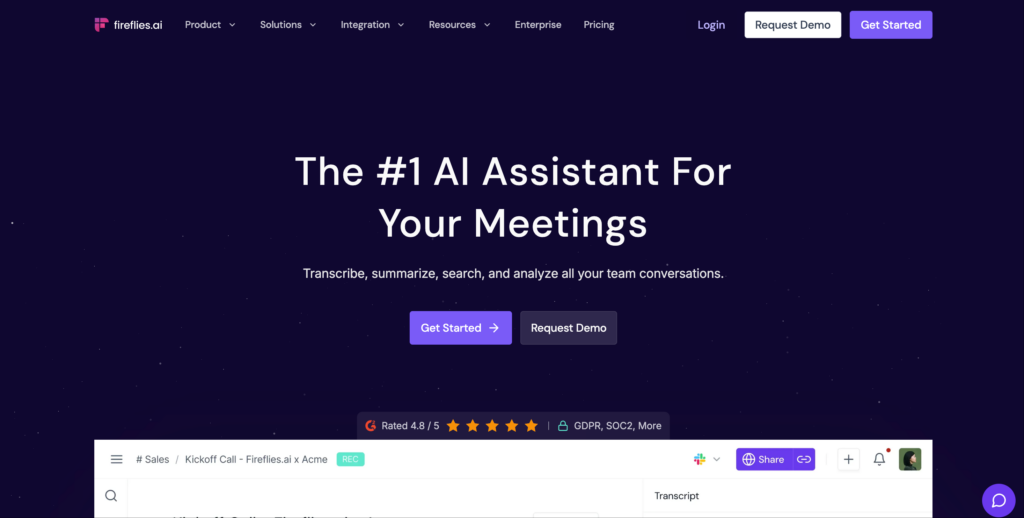
Meeting Transcription: Fireflies.ai can transcribe meetings and calls automatically, helping users capture conversations without taking notes manually. This is useful for team meetings, client calls, interviews, and internal discussions.
AI Summaries: The speech to text converter can generate summaries from meeting transcripts, making it easier to review the main points without reading the full conversation. This helps users catch up on discussions faster.
Action Items: Fireflies.ai can identify action items and follow-up tasks from conversations. This is useful for teams that need to track responsibilities after meetings and keep projects moving.
Speaker Insights: The tool can analyze speaker activity, key topics, and conversation patterns. These insights can help teams understand how discussions flow and what points were covered.
Meeting Tool Integrations: Fireflies.ai integrates with meeting and collaboration platforms, making it easier to record, transcribe, and share conversations across a team workflow – a suitable speech to text option.
Possible Drawback: Fireflies.ai is more meeting-focused than file-focused. It may not be the best fit for content creators who mainly work with local video files, podcast recordings, raw footage, or private media stored on a computer.
Conclusion
Choosing the best speech to text AI free tool depends on factors like accuracy, speed, language support, file support, privacy, and overall value. The right tool should help you create reliable transcripts quickly while making your audio and video content easier to search, edit, summarize, and reuse.
For users who work with interviews, podcasts, videos, voice notes, or private files, Clipto offers a flexible workflow across web and PC.
FAQs
What is speech to text?
Speech to text is technology that converts spoken audio into written text automatically. It can process audio from meetings, videos, podcasts, interviews, lectures, voice notes, and live speech, turning them into editable transcripts that are easier to review, search, and reuse.
Is there a free speech to text tool online?
Yes. Some tools offer speech to text online free with limited usage, and Google Docs Voice Typing is a free option for basic dictation inside a document. Clipto Web is also a good option for users who want to upload audio or video online and generate a transcript without a complex setup.
Can Google transcribe speech to text?
Yes, but it depends on what you need. Google Docs Voice Typing is useful for live dictation when you speak directly into a document. Google Cloud Speech-to-Text is more suitable for developers who want to add speech recognition to apps or systems. If you need to upload audio or video files and get a clean transcript, a dedicated transcription tool like Clipto is usually more direct.
What is the best speech to text AI free tool?
The best speech to text AI free tool depends on file length, accuracy, export formats, language support, privacy, and how often you need to transcribe. For quick online transcription, Clipto Web is a good option for users who want AI speech to text without starting from a technical setup.
What is live speech to text?
Live speech to text converts spoken words into written text in real time. It is often used for meetings, lectures, calls, presentations, and live conversations. Tools like Google Docs Voice Typing, Otter.ai, and Fireflies.ai are commonly used when users need to capture speech as it happens.