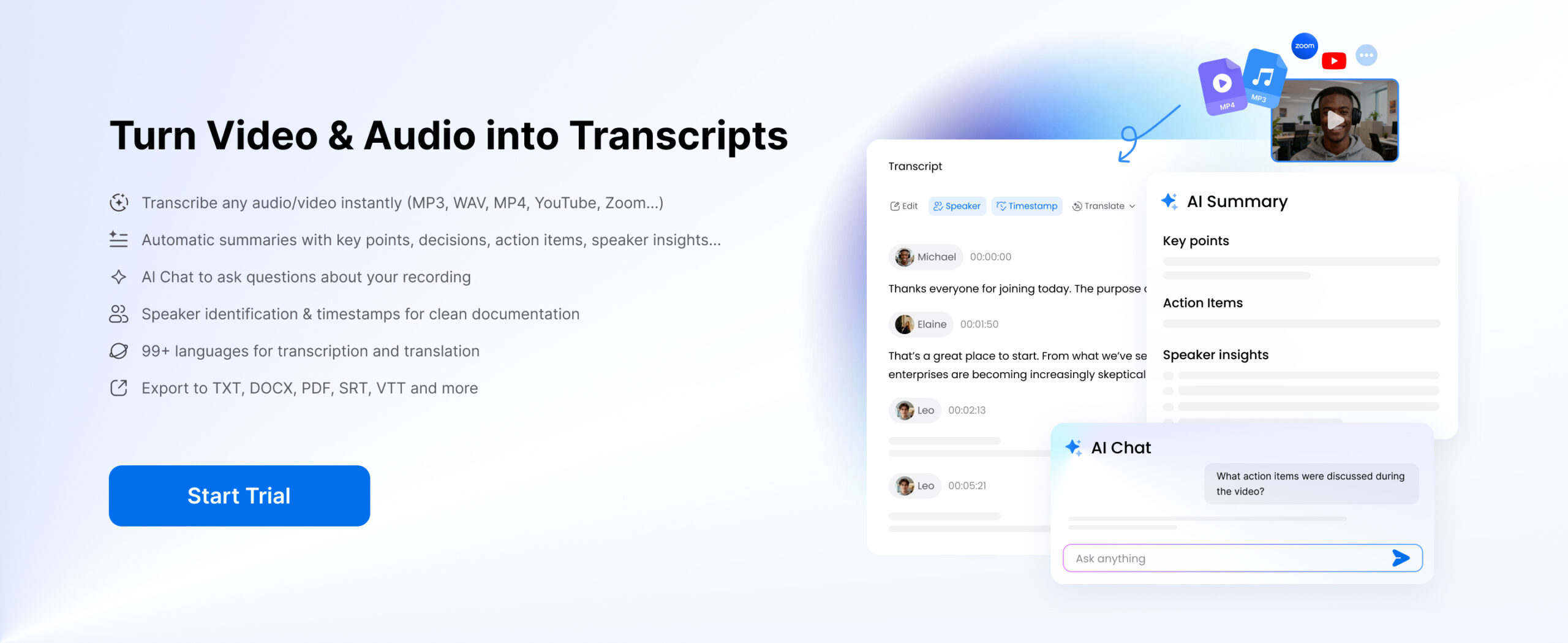
Video is ubiquitous nowadays, whether it is in tutorials and meetings or interviews and social media clips. Yet videos are difficult to search, scan and re-use. This is why video transcription has become necessary. Video, in contrast to text, makes you view the entire video to the end, and it is hard to find important information or get valuable insights quickly. Whether you are a student listening to lectures, a creator using the content, or a professional managing meetings, you will be slowed down and restricted in your productivity by depending on video alone.
You do not have to watch a complete video and can transcribe video to text, quickly locate important points, and convert content into something that can be utilized. Video can be converted into a form that is searchable, editable and can be shared. You are able to emphasize key areas, write summaries, or even repurpose the content in blogs, reports, or social media posts. This guide will teach you an entire video transcription process, not just how to transcribe video to text, but how to transform it into structured information and real value that saves time and enhances efficiency.
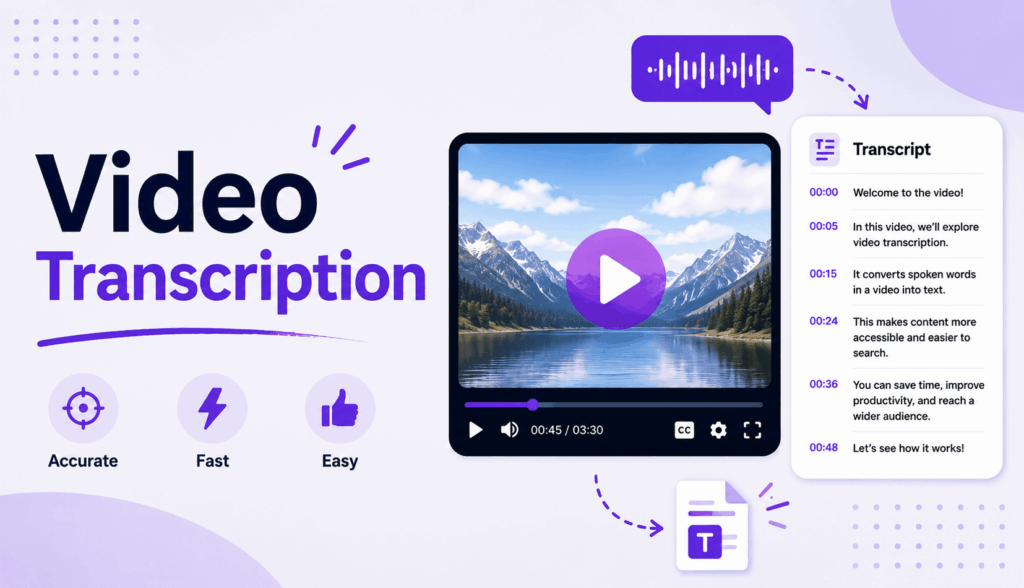
Part 1: Why Video Transcription Is More Than Just Converting Video to Text
Video transcription is the simplest form whereby the spoken words are translated into words. This is commonly referred to as video to text, and as much as this is useful, it is just a beginning. Contemporary work processes extend way beyond mere conversion. Video transcription has a true value of converting raw materials into formatted, usable data that can be used to make decisions, develop content and manage knowledge.
Part 2: The 3-Step Video Transcription Workflow
In order to grasp its value, it is useful to subdivide the process into three major steps:
1. Transcription – Video to Raw Text
This is what a workflow is based on. With the help of such tools as a video transcriber ai, the process of transcribing video to text with timestamps and speaker recognition can be done in a short time.
- Speech to readable text
- Accepts a variety of languages and accents
- Allows rapid retrieval of audio materials
Raw transcripts are however, usually unstructured and hard to read.
2. Organizing – Preparing the Transcript Usable
After having the text, it is time to clean and organize it.
- Eliminate filler words and repetition
- Insert formatting and punctuating
- Subdivide content into areas or subjects
- Label speakers clearly
It is a process of converting an unruly output into something that you can actually use. Even the correct video to text results are not valuable without structuring.
3. Activation – Turning Content into Action
This is where the majority of the people fail to get the chance. You can stop at the text, or:
- Get major insights and summaries
- Determine action items or decisions
- Reduce information, reuse in blogs, notes or reports
Video transcription is no longer documentation at this level but a productivity and decision-making tool.
The majority of the tools end at transcription. However, to get the real value, you should have the complete workflow, i.e. raw text to actionable insights.
Part 3: Step-by-Step Video Transcription Workflow with Clipto.AI
After understanding why video transcription is more than simple video to text conversion, the next step is seeing how the workflow works in a real tool. With Clipto.AI, the process is not only about generating a transcript. It connects upload, transcription, AI summary, AI chat, subtitles, export, and sharing into one complete workflow.
Step 1: Upload Your Video for Transcription
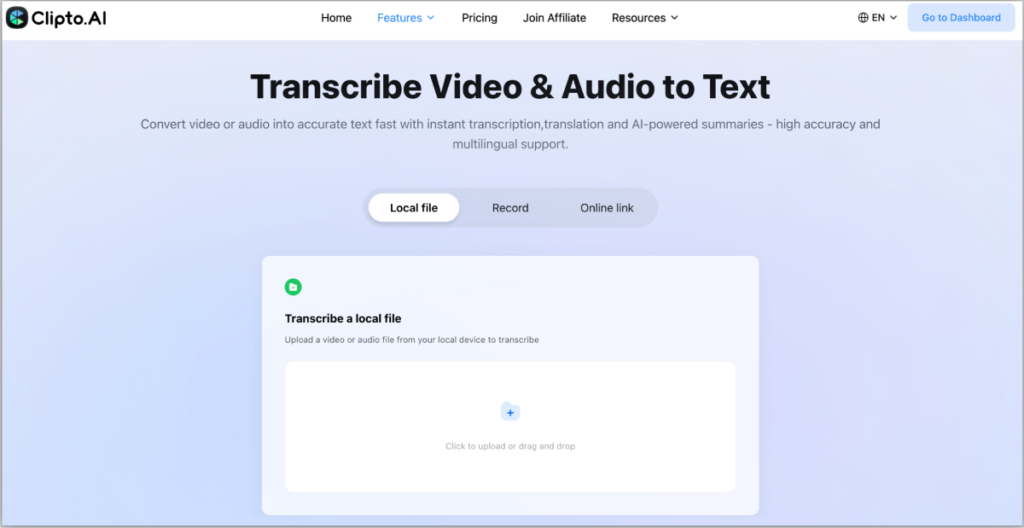
Start by adding your video content to Clipto Video Transcription Tool.
You can:
- Upload local files, such as MP3, MP4, MOV, and other audio/video formats
- Transcribe video link to text by pasting a URL, such as YouTube, Facebook, TikTok, X, Instagram, Vimeo, etc.
- Record audio directly in the browser
- Capture web audio or video content through the Chrome extension
This makes it useful for youtube video transcription, interviews, meetings, courses, podcasts and social media videos. Instead of downloading files first or switching between tools, you can start the video transcription workflow from one place.
Step 2: Generate an Accurate Video Transcript with AI
Once the file, link or recording is added, Clipto video transcription tool automatically converts the video into text.
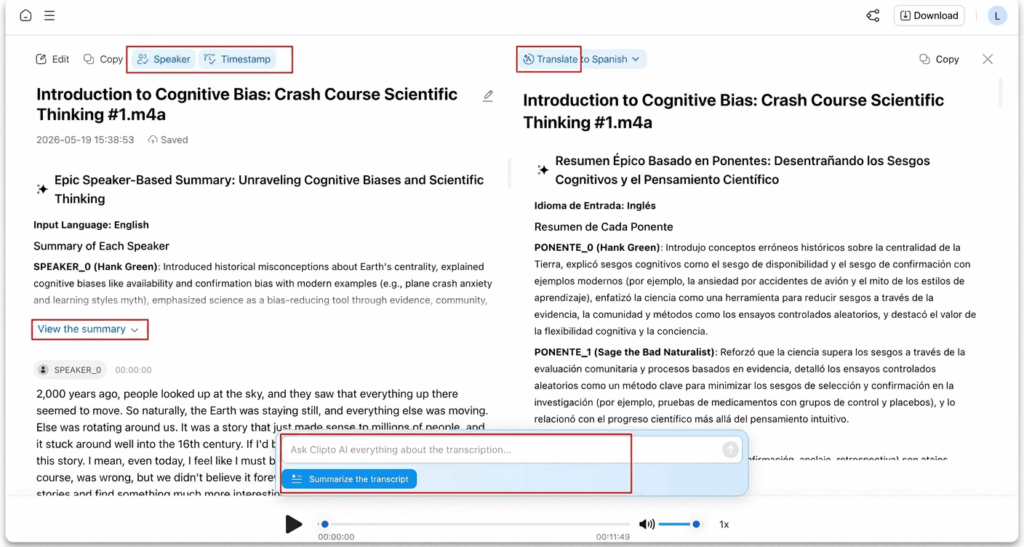
Core transcription capabilities include:
- Up to 99%+ transcription accuracy
- Support for 99+ languages
- Long-file support, up to 6 hours
- Automatic timestamps
- Speaker Identification
- Multi-language transcription and translation
Compared with manual transcription, this process is faster and easier to review because the transcript already includes structure such as timestamps and speaker labels.
Step 3: Create AI-Powered Summaries for Different Use Cases (Optional)
After the transcript is generated, you do not have to read everything line by line. Clipto.AI’s AI Video Summary helps extract the key information from the transcript.
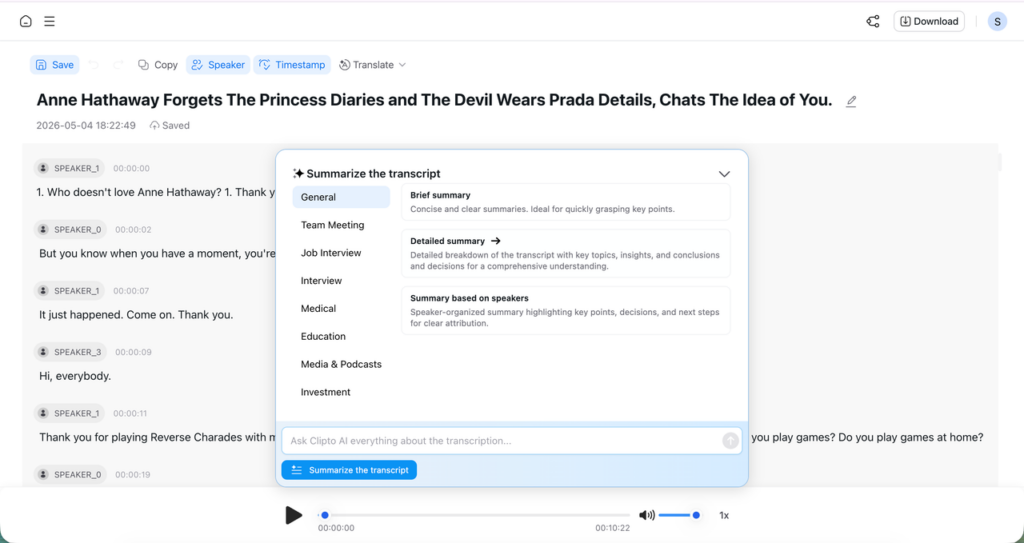
It can generate:
- Bullet-point summaries
- Brief summaries
- Detailed summaries
- Speaker-based summaries
It also supports different summary modes based on the content type, such as:
- Daily stand-up meetings
- Group meetings
- Job interviews
- Lectures and courses
- Podcasts
This matters because different videos need different outputs. A lecture may need learning notes, a meeting may need action items and an interview may need key responses. With these modes, Clipto helps match the summary format to the actual use case.
Step 4: Interact with Your Transcript Using AI Chat (Optional)
AI Summary gives you the main points, while AI Chat lets you go deeper into the transcript.
You can ask questions to get specific information such as:
- Can you summarize the discussion in three bullet points?
- Can you identify important dates, names, or statistics?
- Can you list all deadlines mentioned in the meeting?
- What did the speaker say about pricing?
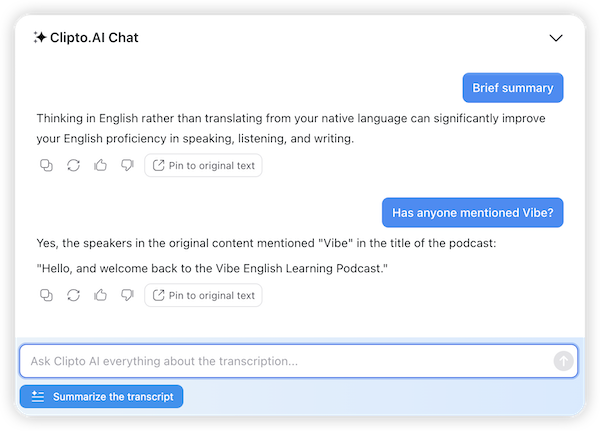
This turns the transcript from static text into interactive knowledge. In other words, Clipto.AI helps you ask, extract, summarize and repurpose the content based on the actual transcript context.
Step 5: Generate Subtitles, Export or Share Your Transcript
Once the transcript, summary or insights are ready, you can export or share the output.
Export options include:
- TXT
- DOCX
- SRT
- VTT
- XML
- FCPXML
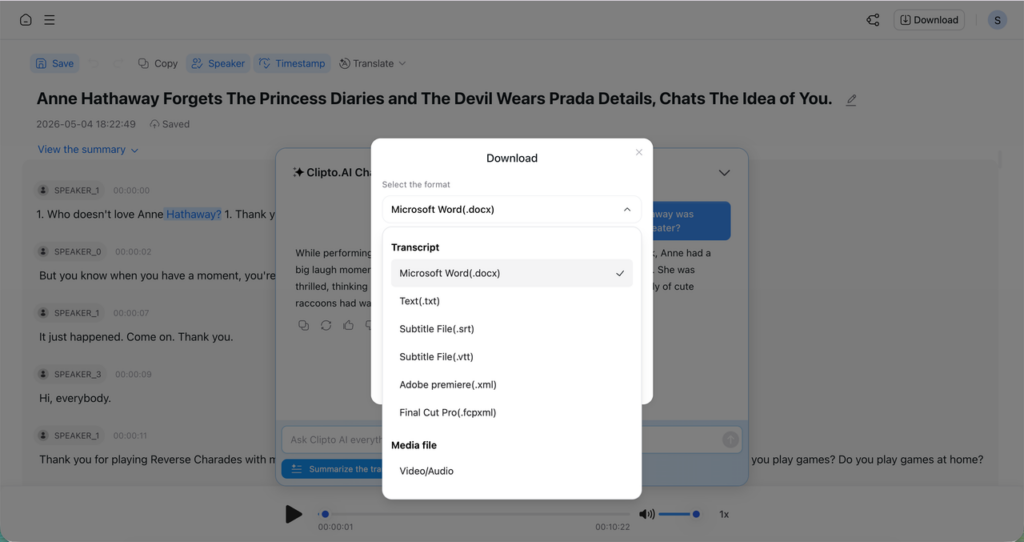
Clipto.AI also supports sharing through generated links, so others can view the transcript and media together. This gives the workflow a collaboration layer, similar to using a shared document or media workspace.
Part 4: Top Video Transcription Use Cases and Benefits
Video transcription workflow is an important tool to have due to its wide range of applications in practice. After transcribed video to text, you are able to make the content searchable, reusable and far easier to work with. You can scan, extract and reuse information in an organized manner as opposed to watching a video over and over again. Some of the most frequent and useful applications are listed below.
Content Creation & SEO
Video transcription is a potent content generator to creators and marketers.
With video to text conversion, you can:
- Turn videos into blog posts or long form guides
- Maximize search positioning through indexable rich content
- Get transcripts as keywords and topics
- Repurpose a single video to a variety of forms (posts, newsletters, scripts)
This is a time-saving technique as well as a method of scaling content production without having to create a new one.
Research & Interviews
Reviewing the recordings in research or other works requiring interviews may be tedious and time-consuming. Under video transcription, you can:
- Watch without the need to re-watch entire videos
- Quickly extract quotes and important insights
- Cross-tabulate answers in a series of interviews
- Make qualitative data organized
Interview transcription facilitates easier identification of patterns, summarization of findings as well as enhancing efficiency of the research.
Meetings and Business Processes
In the case of teams and businesses, video transcription enhances productivity and clarity in communication.
You can:
- Create meeting notes automatically
- Monitor decisions and action plans
- Share summaries are provided to the stakeholders
- Note down a searchable history of conversations
Meeting transcripts are a better and steady source of information compared to memory or notes jotted down in isolated circumstances. This is also beneficial in building a knowledge base that can be used internally with time.
Education & Media
Video transcription has several advantages in education and media such as accessibility and efficiency in learning.
Using it, you can:
- Increase accessibility with subtitles
- Write briefs to review more quickly
- Separate lectures or podcasts into major points
- Favor other styles of learning (reading vs listening)
This is beneficial to students, educators, and content consumers as they can be able to access and comprehend information fast without viewing whole videos.In all these cases, the actual benefit of video transcription is the ability of the output to be easily customized to meet other requirements. Similar to Clipto.AI, various modes are integrated into the workflow, and you can customize them to specific use cases (e.g. content creation, meetings, research, etc.) and achieve the desired output in a single use without having to switch tools.
Conclusion
Video transcription is not simply a matter of video to text conversion anymore, but a matter of transforming that information into knowledge, actions, and things to reuse. Once you go beyond simply transcribing video to text, you open opportunities for searching, analyzing and reusing information in a way that saves time and generates real value.
And in case you are still considering transcription as the last stage, you are losing the greatest opportunity. Begin to utilize an entire workflow that links transcription and summaries and insights. Use Clipto.AI to transcribe video to text, generate immediate summaries, and engage with your content with AI so that every video that you process turns into something you actually use, not just store.
FAQs
Q1: What is a video transcript generator and how does it work?
A transcript generator from video is a type of AI that is used to create written text out of the spoken word. It breaks down speech patterns, identifies words, and organizes them into readable sentences, which are frequently accompanied by timestamps and labels of speakers. This enables users to enhance the speed with which they can convert video content into searchable and editable text without typing them manually.
Q2: What is the time spent in transcribing video to text?
In the event of modern AI tools, transcribing video to text can be completed in a few minutes, depending on the length of the video and the speed of processing. Transcription is much more efficient than manual transcription, as in most cases it is much faster than real-time playback.
Q3: Is it possible to write down Tik Tok or short videos?
Yes, there are numerous tools that can be used for video transcription TikTok, which are capable of transcribing short-format videos into text within a short period of time. It is particularly helpful when creators are interested in reusing the material, providing captions, or deriving the main ideas of very brief clips.
Q4: Is it possible to edit a transcript once it is converted to text with video?
Yes, the majority of the sites will give you the option to edit and refine the output once you have transcribed video to text. It is possible to correct mistakes, change the format, and modify the structure to make the content easier to understand and more applicable to various purposes like articles or subtitles.
Q5: What do I do once I have transcribed video to text?
Once you have completed video to text transcription, you can do a lot with the transcript. You are able to make summaries, blog posts, subtitles, reports or even training material. It also assists in enhancing SEO, as video content can be searched and reused on various platforms.