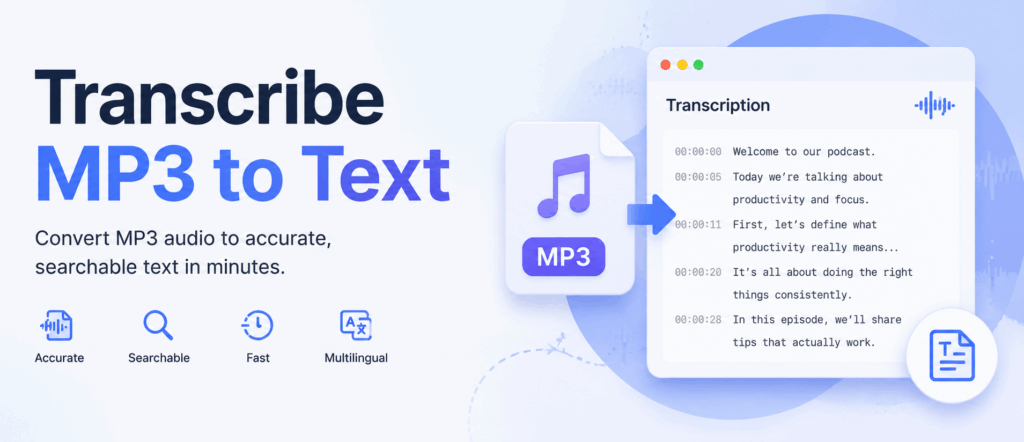
Transcribe MP3 to text – two simple actions that may seem separate at first, but are actually closely connected.
With the rapid growth of audio content online, the need to quickly convert MP3 to text and create accurate transcripts has become more important than ever. In this guide, we’ll explore the benefits of transcribing MP3 to text and show you how to transcribe MP3 files to text for free with Clipto. Whether you’re a content creator, researcher, student, or someone working with recorded audio, keep reading to discover practical tips on how to convert MP3 files into searchable text quickly and easily.
Part 1. Benefits of Transcribing MP3 to Text
Before we get into the steps, let’s first look at why you may need to transcribe MP3 to text in the first place.
Here are some key benefits of turning an MP3 file into a text transcript:
- Makes audio easier to search
- Helps you take better notes
- Makes content easier to reuse
- Improves accessibility
- Supports SEO for audio content
- Keeps a clear record of important audio
Makes Audio Easier to Search
You probably do not want to replay an entire MP3 file just to find one name, quote, decision, or key point. A text transcript makes that process much easier.
Once your MP3 has been transcribed into text, you can search the file in seconds and jump straight to the part you need. This is especially useful for long interviews, lectures, podcasts, meetings, and research recordings where important details may be buried deep in the audio.
Helps You Take Better Notes
Do you find it distracting to take notes while listening to a meeting, class, interview, or lecture? Instead of trying to type everything manually, you can record the audio first and convert the MP3 to text later.
This way, you can create clearer and more complete notes from meetings, voice memos, research recordings, or classroom sessions without missing the conversation while it is happening.
Makes Content Easier to Reuse
Text transcripts are much easier to edit, organize, and turn into other types of content. Once you transcribe MP3 to text, the transcript can become the starting point for summaries, blog posts, captions, social media posts, show notes, articles, or research notes.
For example, a podcast recording does not have to stay as audio only. With a transcript, you can pull out quotes, write a recap, create short clips, or turn the episode into a written article.
Improves Accessibility
Transcribing MP3 files into text makes your audio content easier to access for more people. Some people may not be able to listen to the audio clearly, while others may prefer reading over listening.
A transcript can also help when someone needs captions, wants to review the content quietly, or plans to translate the text into another language. Instead of limiting your content to listeners only, a transcript gives your audience another way to understand and use the information.
Supports SEO for Audio Content
Search engines can read text much more easily than they can understand audio. If your podcast, interview, webinar, or audio page only includes an MP3 file, there may not be enough written content for search engines to index properly.
Adding a transcript gives search engines more readable text to work with. It can help your audio content become easier to discover and may improve the chances of your page ranking for relevant topics, quotes, names, and long-tail search terms.
Keeps a Clear Record of Important Audio
Sometimes an MP3 file needs to be kept as a written record. This can be useful for meetings, interviews, legal notes, customer calls, research conversations, training materials, and internal documentation.
By converting MP3 to text, you can store the information in a format that is easier to review, share, archive, and reference later. Instead of searching through audio files one by one, you can keep a clean written record that is ready whenever you need it.
Part 2. Why Use Clipto to Transcribe MP3 Files
Clipto is an AI transcription tool that helps convert audio and video files into text, summaries, and reusable content in minutes. If you want to transcribe MP3 files without typing everything manually, Clipto is a practical option, and here are six reasons why.
Accurate AI Transcription with Speaker Identification and Timestamps
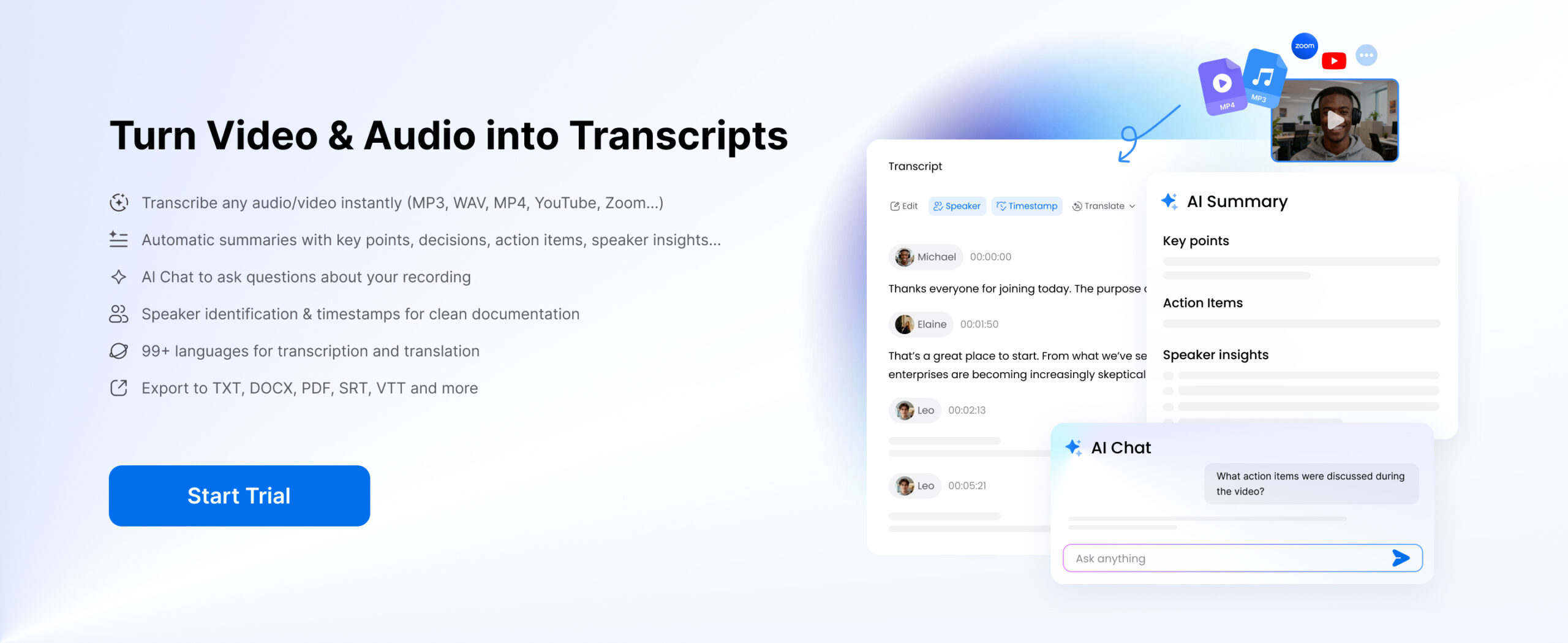
Clipto uses AI to quickly convert MP3 files and other audio content into accurate, readable transcripts. With speaker identification, timestamps, up to 99% accuracy, and support for 99+ languages, you can easily follow conversations and find important moments in your recordings.
Whether it’s meetings, interviews, podcasts, lectures, or group discussions, Clipto helps you save time by eliminating manual listening, pausing, and typing. Clear speaker labels and timestamps make transcripts easier to review, edit, quote, and organize.
Supports Audio, Video Files and Online Media
Clipto supports various audio and video files, as well as online media, allowing you to convert spoken content into accurate text in one place.
From voice memos and meetings to podcasts, interviews, lectures, webinars, and online videos, Clipto helps you create searchable transcripts, notes, summaries, captions, and more without switching between different tools.
AI Summary and Chat for Better Insights
After you transcribe MP3 files to text, Clipto helps you understand and work with your transcripts more efficiently. Use AI Summary to quickly extract key points, important details, and action items from long recordings. With AI Chat, you can ask questions, explore specific topics, and get instant answers directly from your transcripts.
Whether you’re reviewing meetings, interviews, lectures, or podcasts, Clipto helps you turn raw audio into structured insights and actionable information.
Protect Your Privacy with Local MP3 Transcription
For users who work with sensitive audio files, Clipto Mac/Windows allows you to transcribe MP3 files locally without uploading your audio to the cloud. The entire transcription process happens directly on your device, helping keep sensitive recordings private and secure. It’s especially useful for professionals handling confidential content, including legal files, medical recordings, research interviews, and private business conversations.
Part 3. How to Transcribe MP3 to Text Online with Clipto
If you want to get a readable transcript quickly, using Clipto is a simple way to transcribe MP3 to text free online. This is especially helpful when the recording is long, the audio includes several speakers, or you need the text for notes, captions, summaries, or later editing.
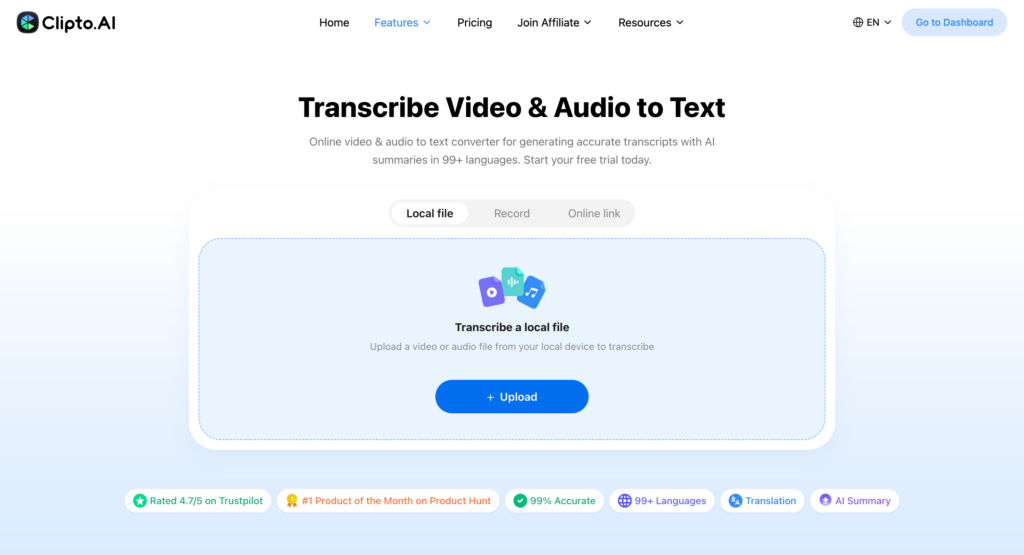
Step 1: Add MP3 to MP3 to Text Converter
Upload the MP3 loacl file you want to transcribe or add audio from online sources. You can convert meeting recordings, podcasts, interviews, lectures, voice memos, webinar audio, and other spoken content into accurate text quickly and easily.
Step 2: Generate the MP3 Transcript
Once uploaded, Clipto processes your MP3 file and converts spoken content into text. Your transcript includes speaker identification and timestamps, making conversations easier to follow. You can also translate and edit the MP3 transcript to work with your content more efficiently.
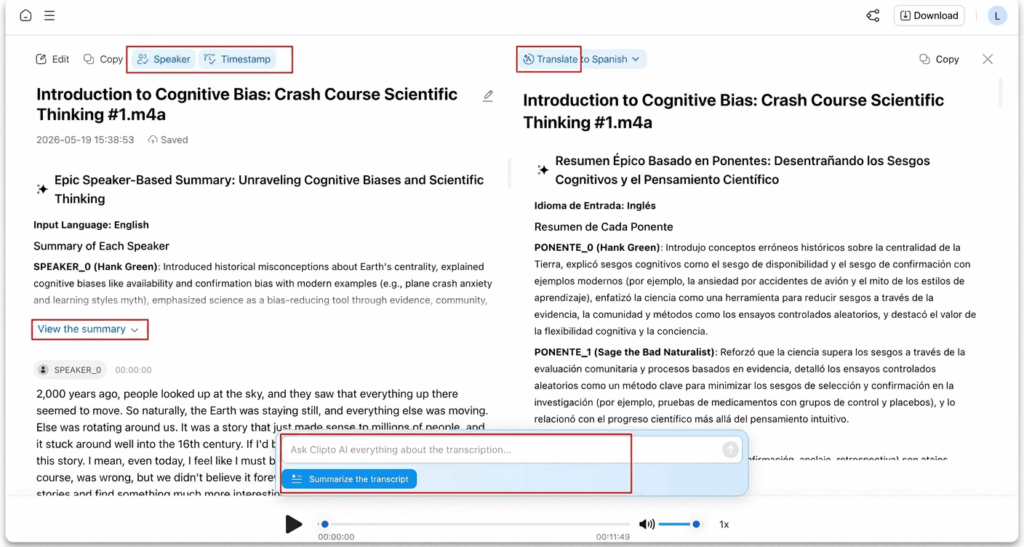
After generating your transcript, use AI Summary to quickly extract key points and action items. With AI Chat, you can ask questions and explore specific information directly from your transcript.
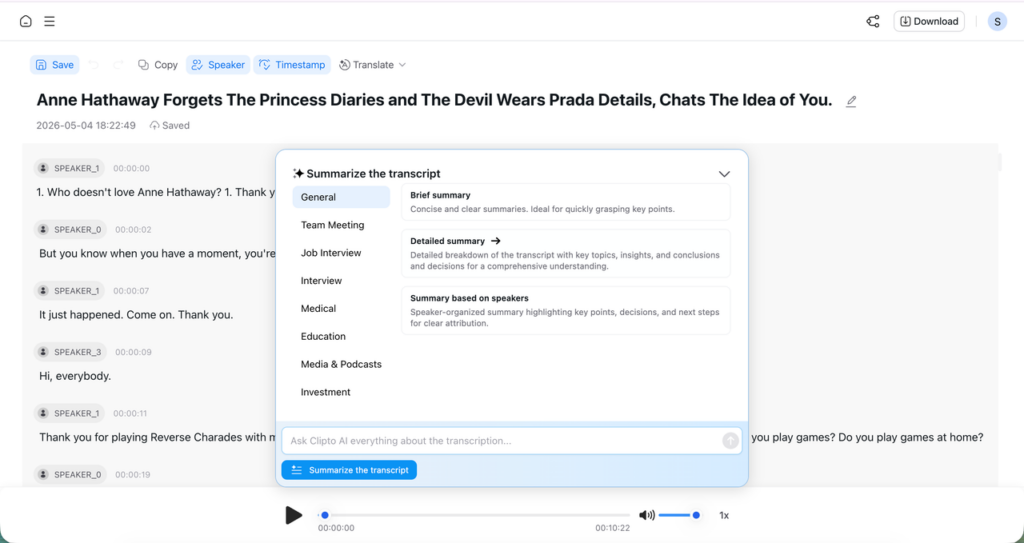
Step 3: Export or Reuse the MP3 Transcript
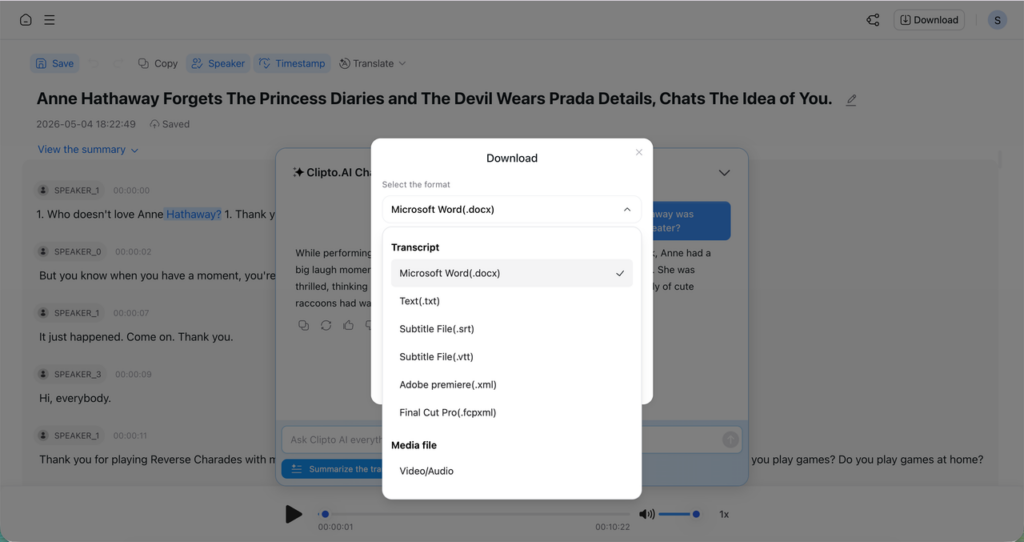
After reviewing your transcript, you can export it in formats like DOCX, TXT, SRT, VTT, Adobe Premiere XML, and Final Cut Pro XML. You can also translate, edit, summarize, and repurpose the text into notes, captions, subtitles, articles, or other content.
Part 4. How to Transcribe Sensitive MP3 Files Locally
Need to transcribe private or confidential MP3 files? Clipto for Mac and Windows processes your audio locally on your device without uploading files to the cloud. This keeps sensitive recordings secure while providing fast and accurate transcription, making it ideal for legal audio, medical recordings, research interviews, client conversations, and other private content.
Step 1: Add Your MP3 File to Local MP3 to Text Converter
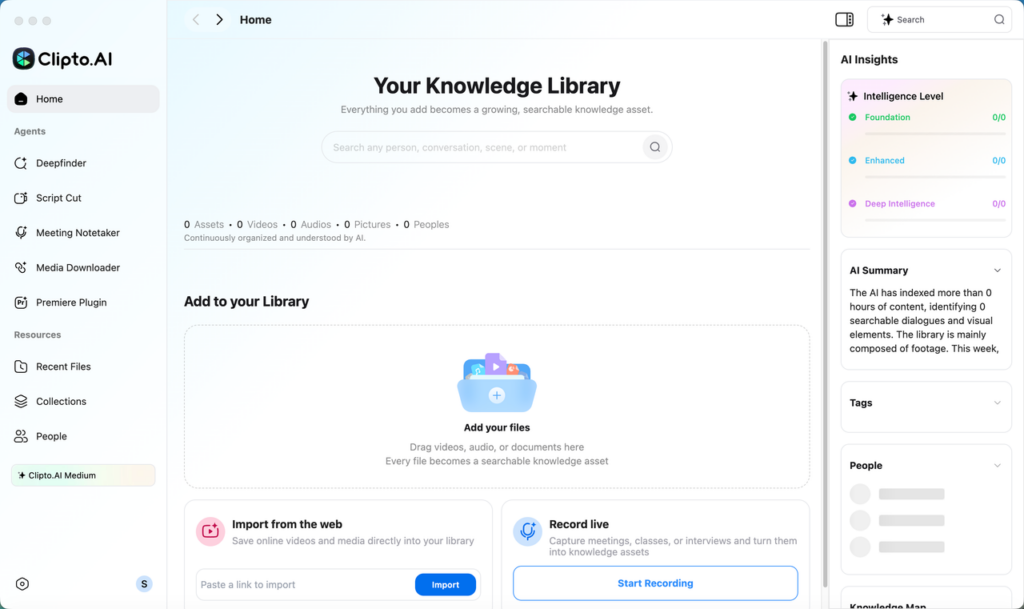
Open Clipto on your Mac or Windows and import the MP3 file you want to transcribe. Simply drag and drop your audio into the app, and the entire process stays on your device without sending your files online.
Step 2: Create Local MP3 Transcript
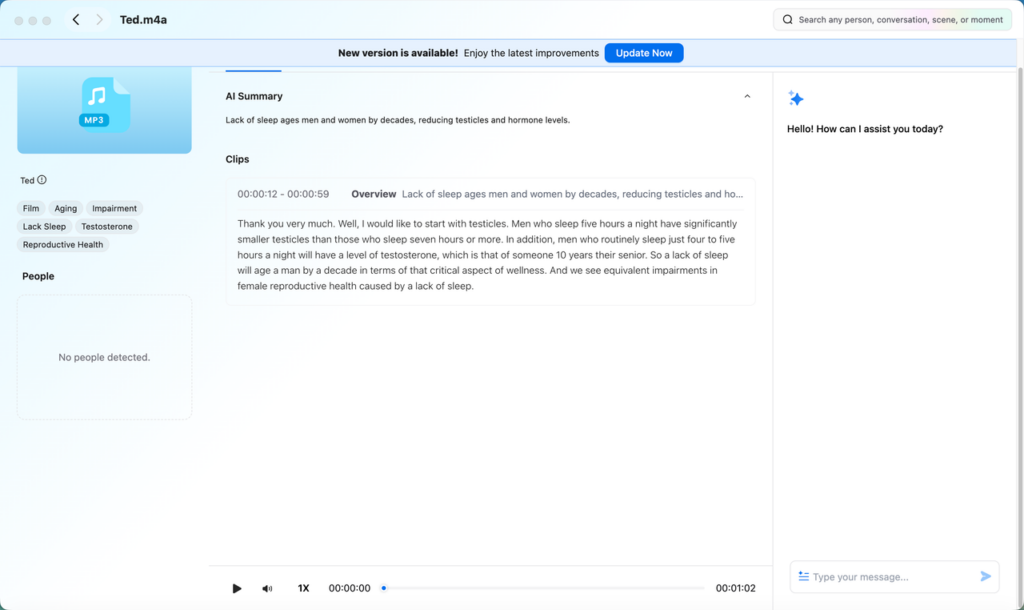
Clipto uses on-device AI to convert your MP3 audio into accurate text while keeping your data private. Your transcript includes timestamps and speaker identification, making it easier to review conversations.
You can also translate, edit, summarize, and chat with your transcript using AI Summary and AI Chat to quickly find key information, insights, and important details.
Step 3: Export Your MP3 Transcript
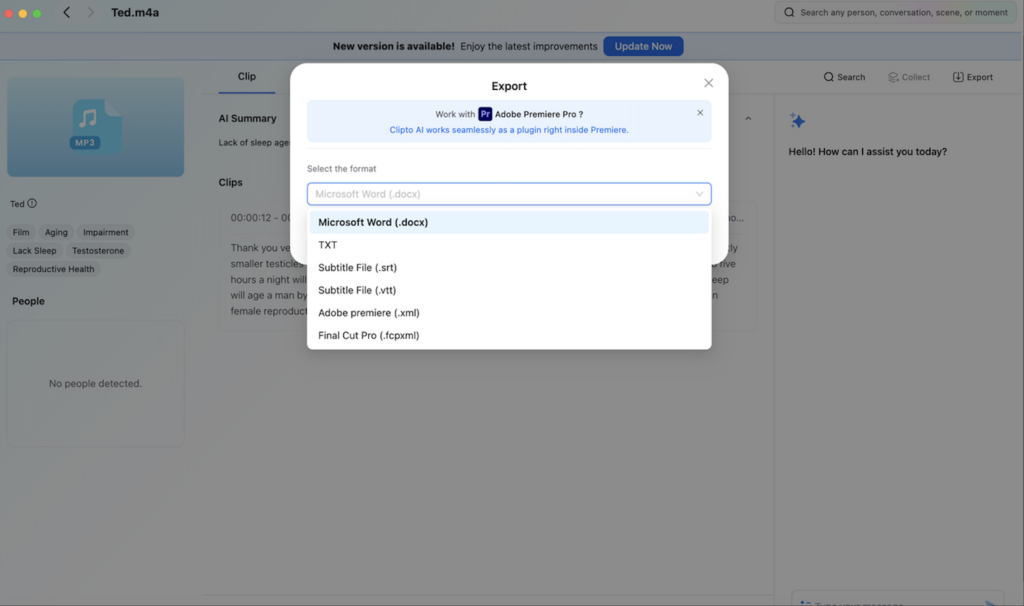
Export your MP3 transcript in the format that fits your workflow, including DOCX, TXT, SRT, VTT, Adobe Premiere XML, and Final Cut Pro FCPXML. Use your transcript for editing, subtitles, notes, or content creation.
Conclusion
Transcribing MP3 files to text makes your audio easier to search, edit, summarize, and reuse. With Clipto, you can quickly convert MP3 recordings into accurate transcripts with speaker identification, timestamps, AI Summary, and AI Chat.
Whether you’re working with meetings, podcasts, interviews, lectures, or private recordings, Clipto helps you transcribe audio into useful, searchable content.
Start transcribing your MP3 files to text with Clipto today.
FAQs
How do I transcribe MP3 to text online for free?
Clipto is an online AI transcription tool that you can use to transcribe MP3 to text free. Upload your MP3 file, let Clipto convert the audio into text, then review, edit, and export the transcript when it is ready.
Is AI transcription accurate for MP3 files?
AI transcription can create a useful transcript quickly, especially when the MP3 file has clear speech and limited background noise. However, it is still a good idea to review the transcript before using it as final text. Check names, numbers, technical terms, and any unclear parts of the recording to make sure the transcript is accurate.
How long does it take to transcribe an MP3 file?
It depends on the length of the MP3 file, the audio quality, and your upload speed. Short recordings can usually be processed quickly, while longer meetings, interviews, podcasts, or lectures may take more time to turn into a complete transcript.
Can I transcribe podcasts from MP3 to text?
Yes. If your podcast episode is saved as an MP3 file, you can upload it to Clipto and create a text transcript in minutes. After that, you can use the transcript for show notes, blog content, captions, quotes, summaries, or SEO.
Can I transcribe MP3 files in different languages?
Yes, Clipto supports multilingual transcription. Before processing your file, choose the right language if the tool asks you to select one. This helps Clipto generate a cleaner and more accurate transcript for your MP3 audio.